How to configure Budgets for Cost Groups?
Budgets in CloudMonitor empower users to proactively manage cloud spending by establishing predefined spending limits for each Cost Group. By setting budgets, organizations gain control over their cloud expenses and can mitigate the risk of exceeding financial thresholds. Budgets serve as financial guardrails, allowing teams to track spending in real-time and take corrective actions as necessary to stay within budgetary constraints. This feature fosters financial accountability and ensures that cloud resources are utilized efficiently in alignment with organizational objectives.
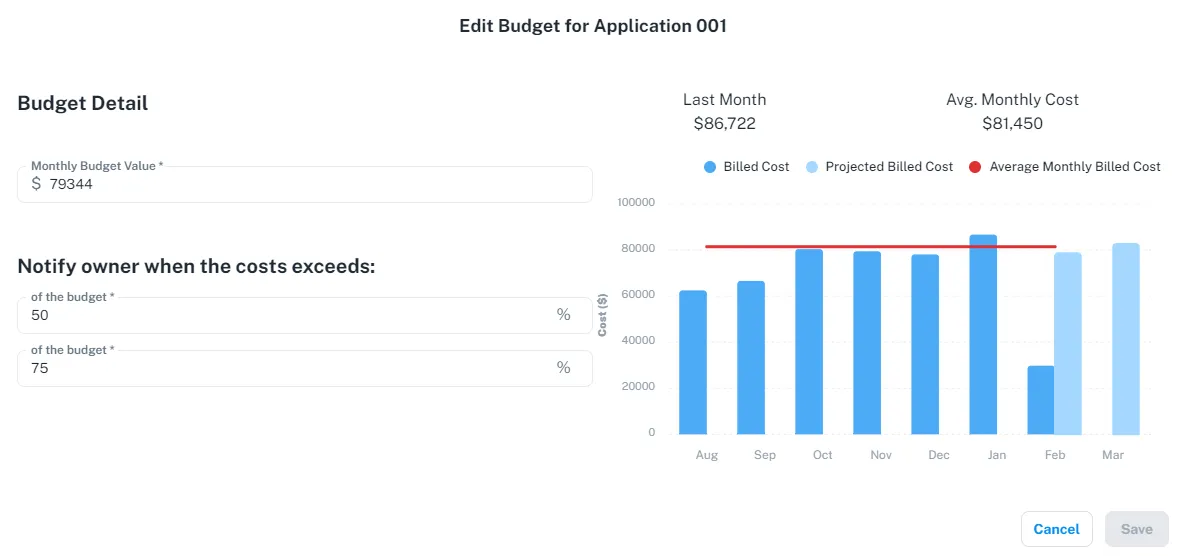
Below is a step-by-step guide to configure budgets for Cost Groups in CloudMonitor,
**
Step 1
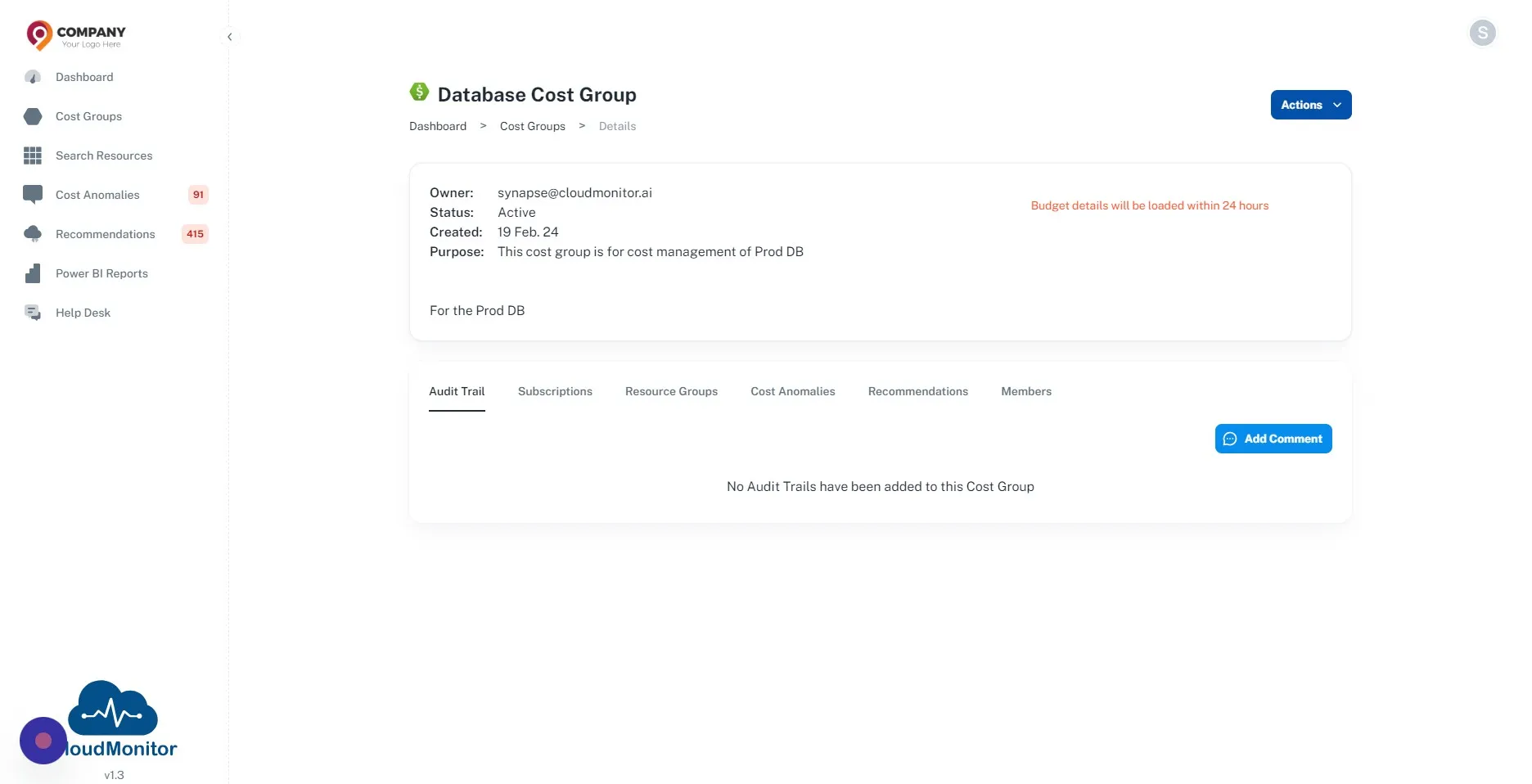
Section titled “Step 1”Navigate to your Admin App URL and authenticate with your email address and password
Step 2
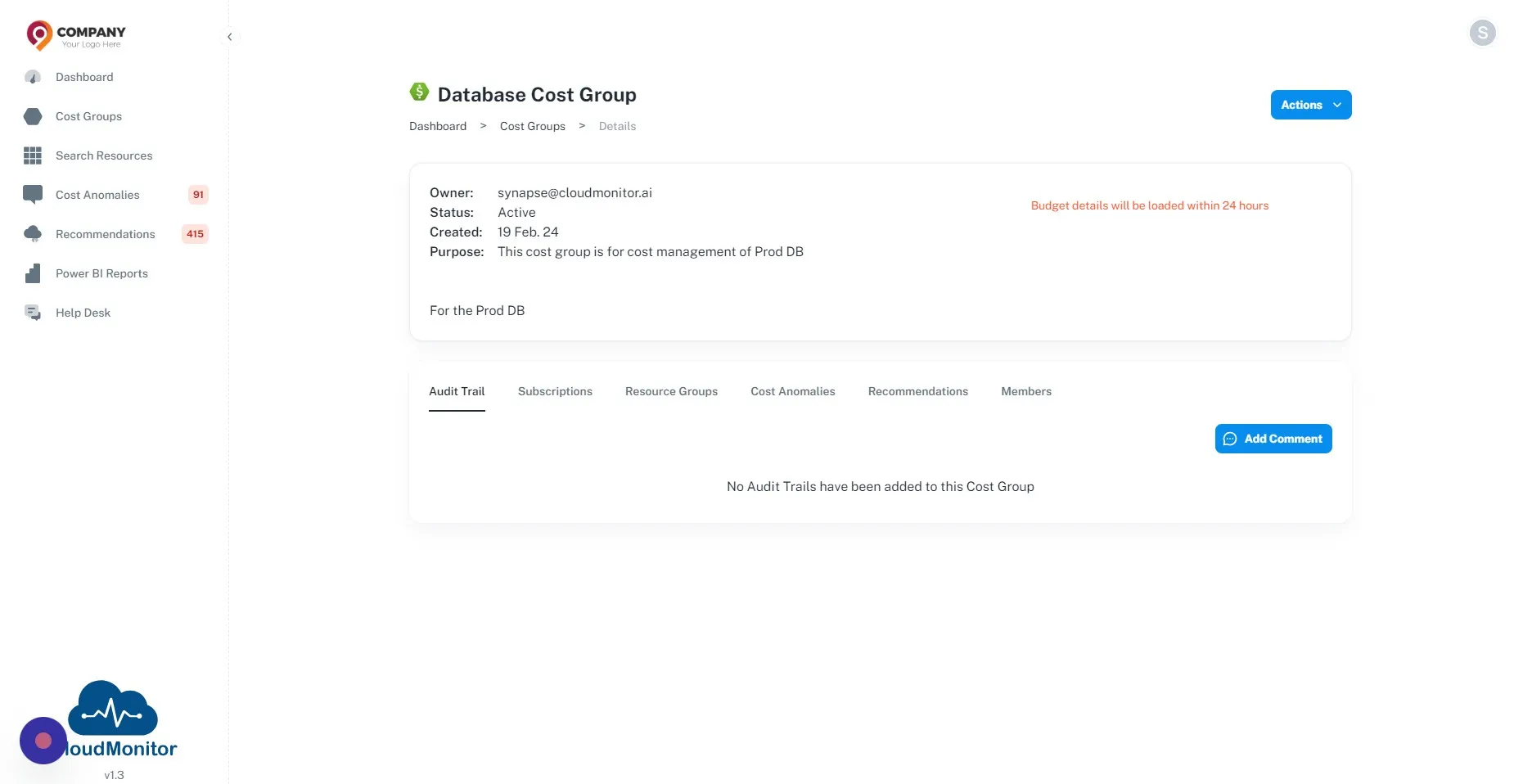
Section titled “Step 2”Go to Cost Groups and select the cost group which need to be configured with a budget.
If you haven’t created any Cost Groups please refer to this article.
Step 3
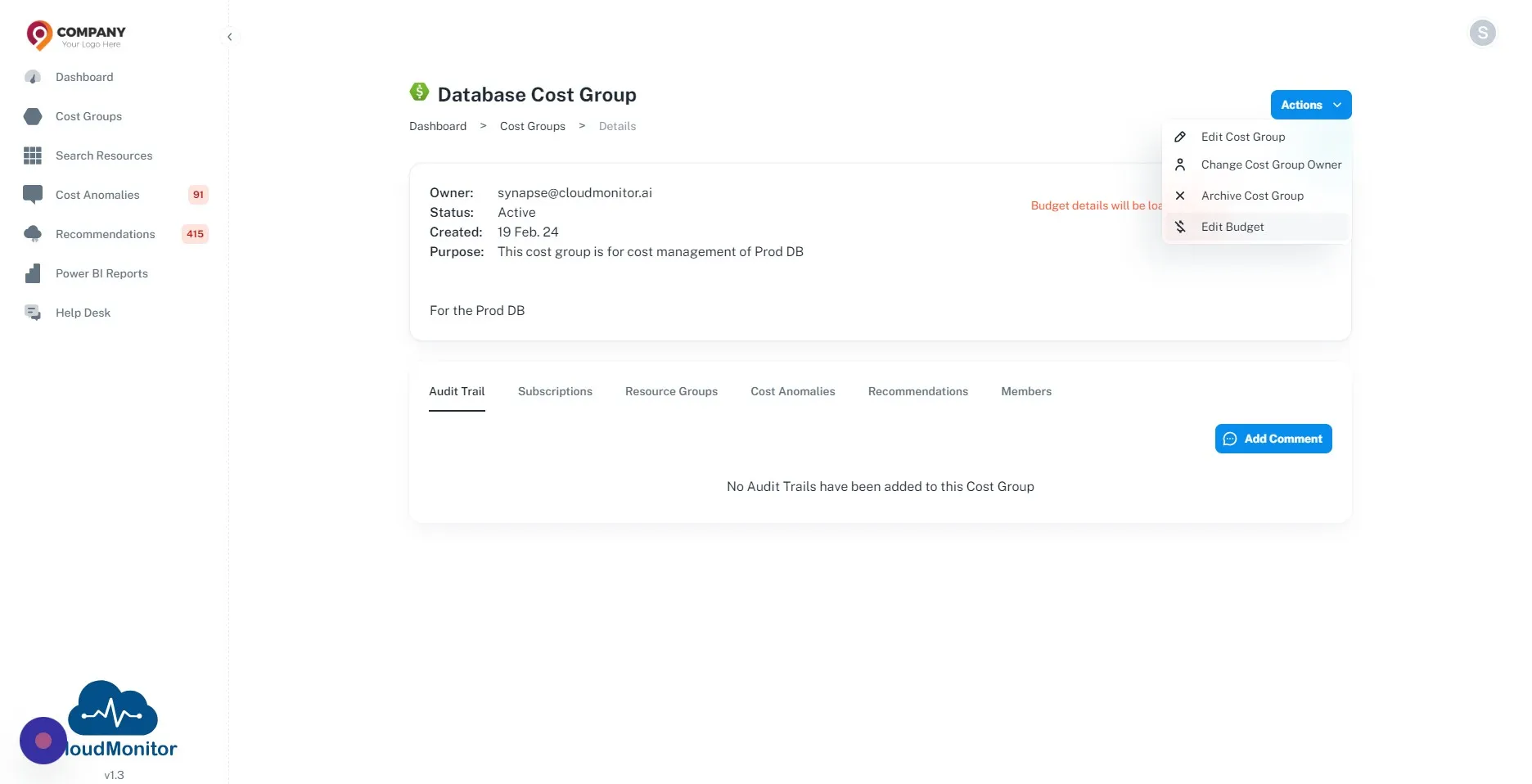
Section titled “Step 3”Click “Edit Budget”
Step 4
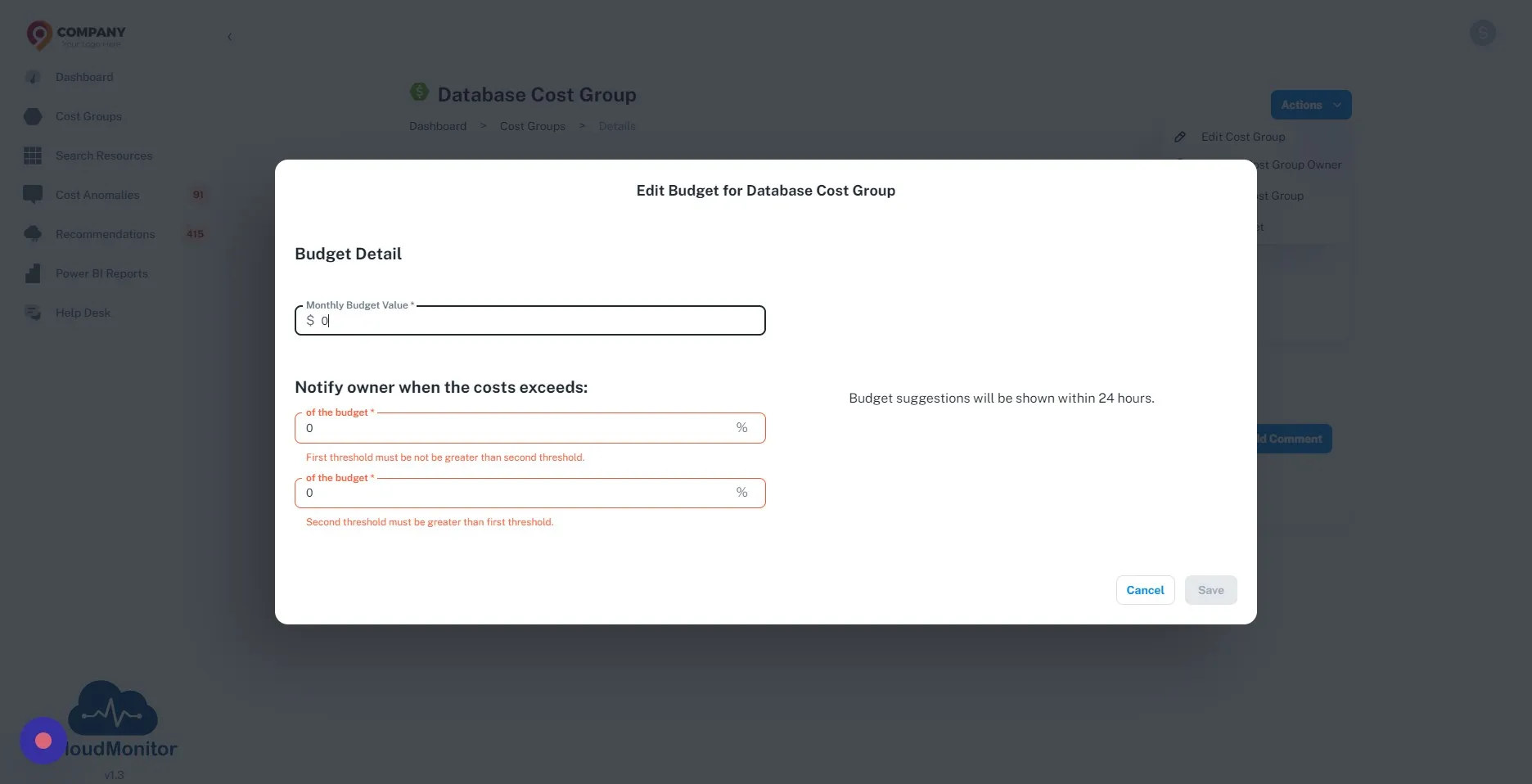
Section titled “Step 4”Click the “Monthly Budget Value *” field and insert the budget amount for that Cost Group.
Step 5
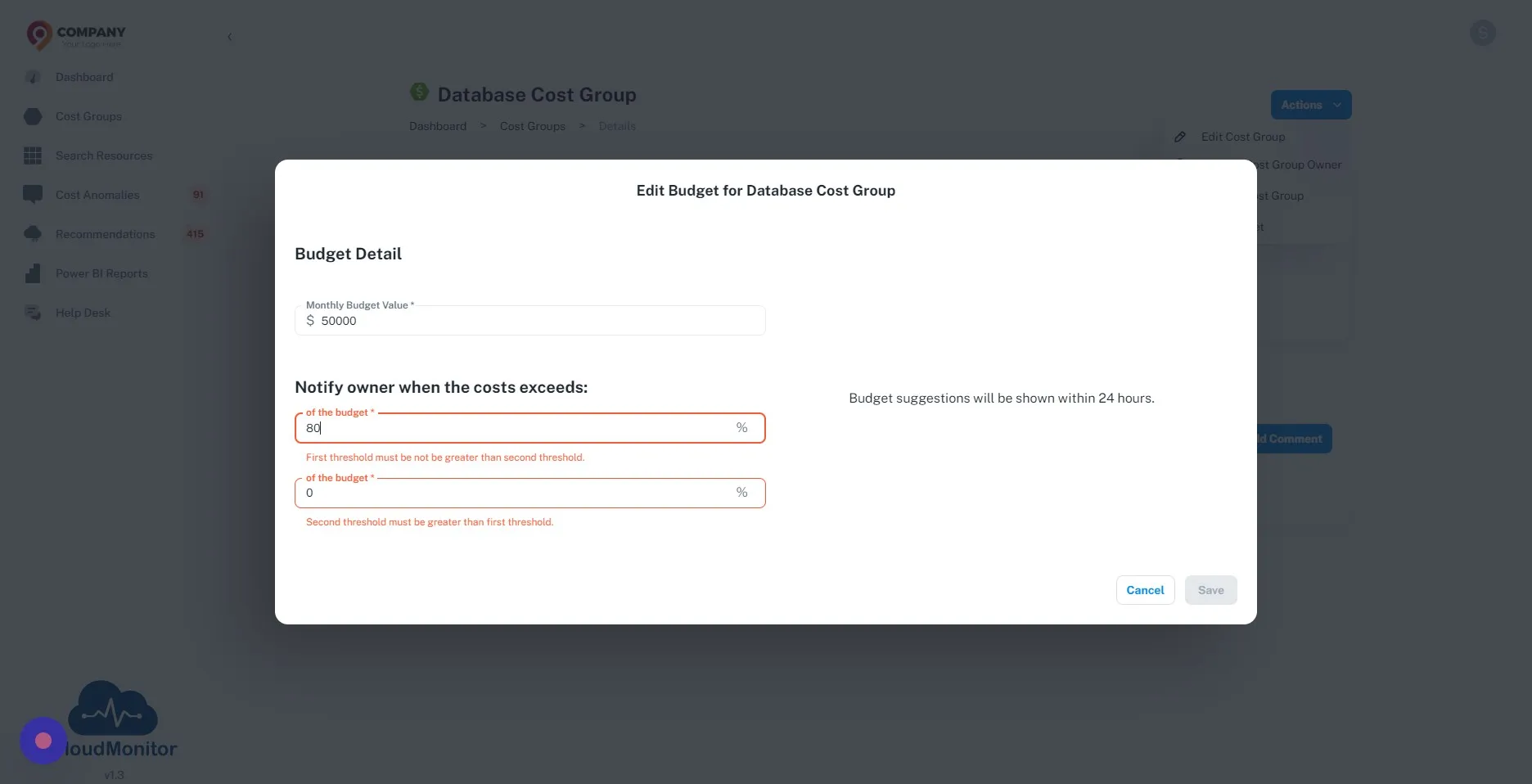
Section titled “Step 5”Add threshold values need to be notified to the cost group owner.
Step 6
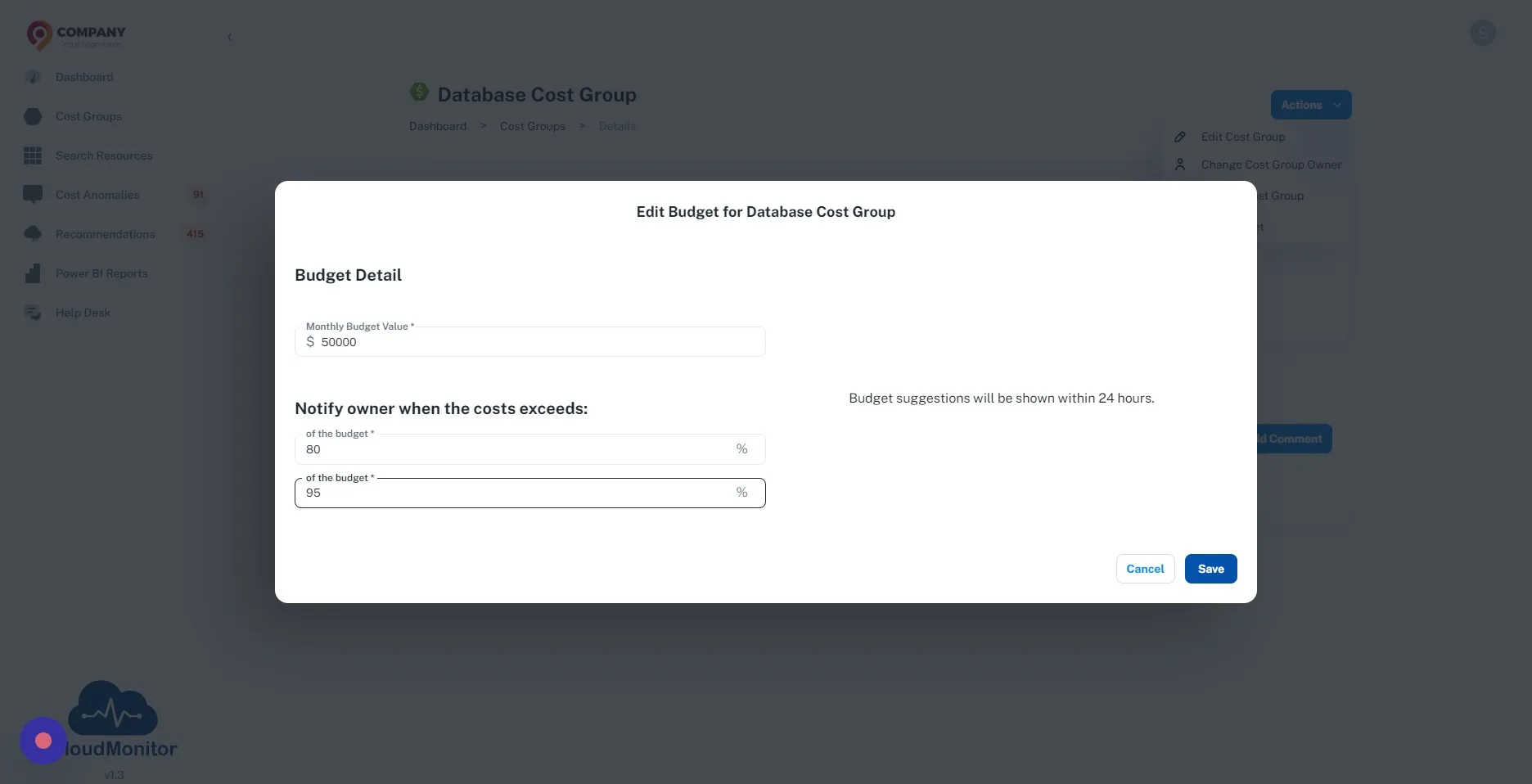
Section titled “Step 6”Click “Save”
Step 7
Section titled “Step 7”After configuring budgets, Power BI report and Admin app will be updated in 24hrs.