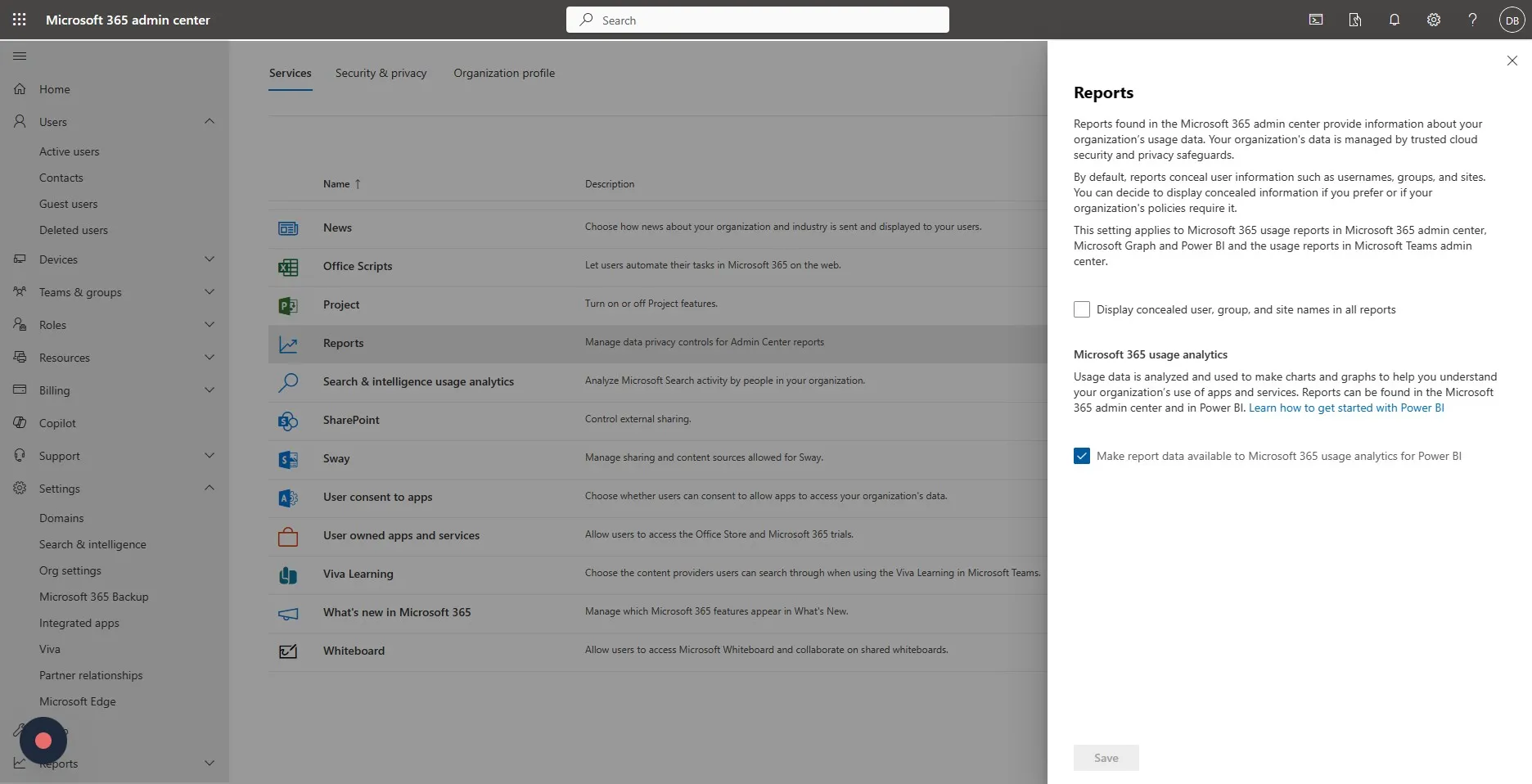
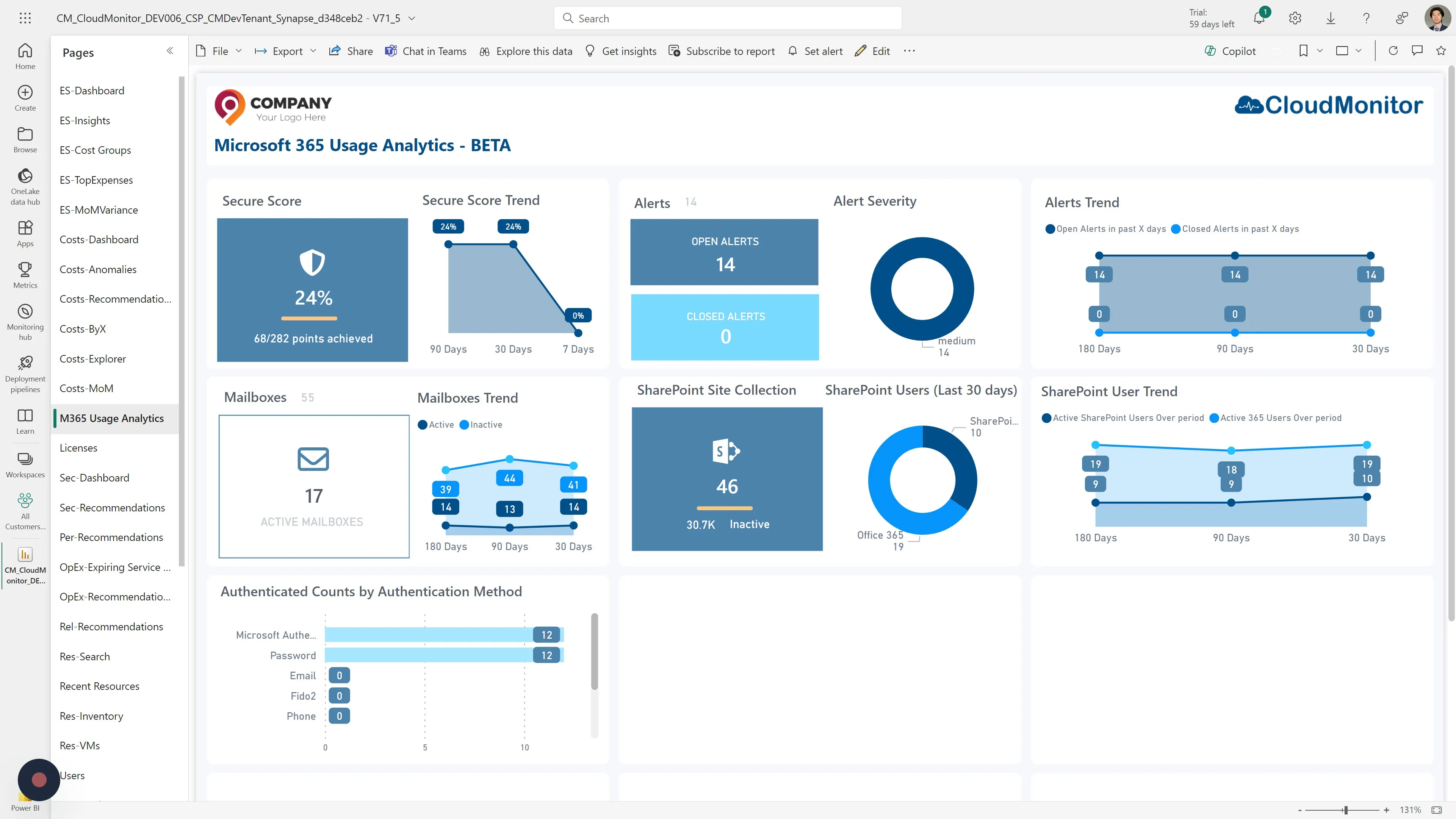
Microsoft 365 Usage Analytics - Permissions required.
Step 1
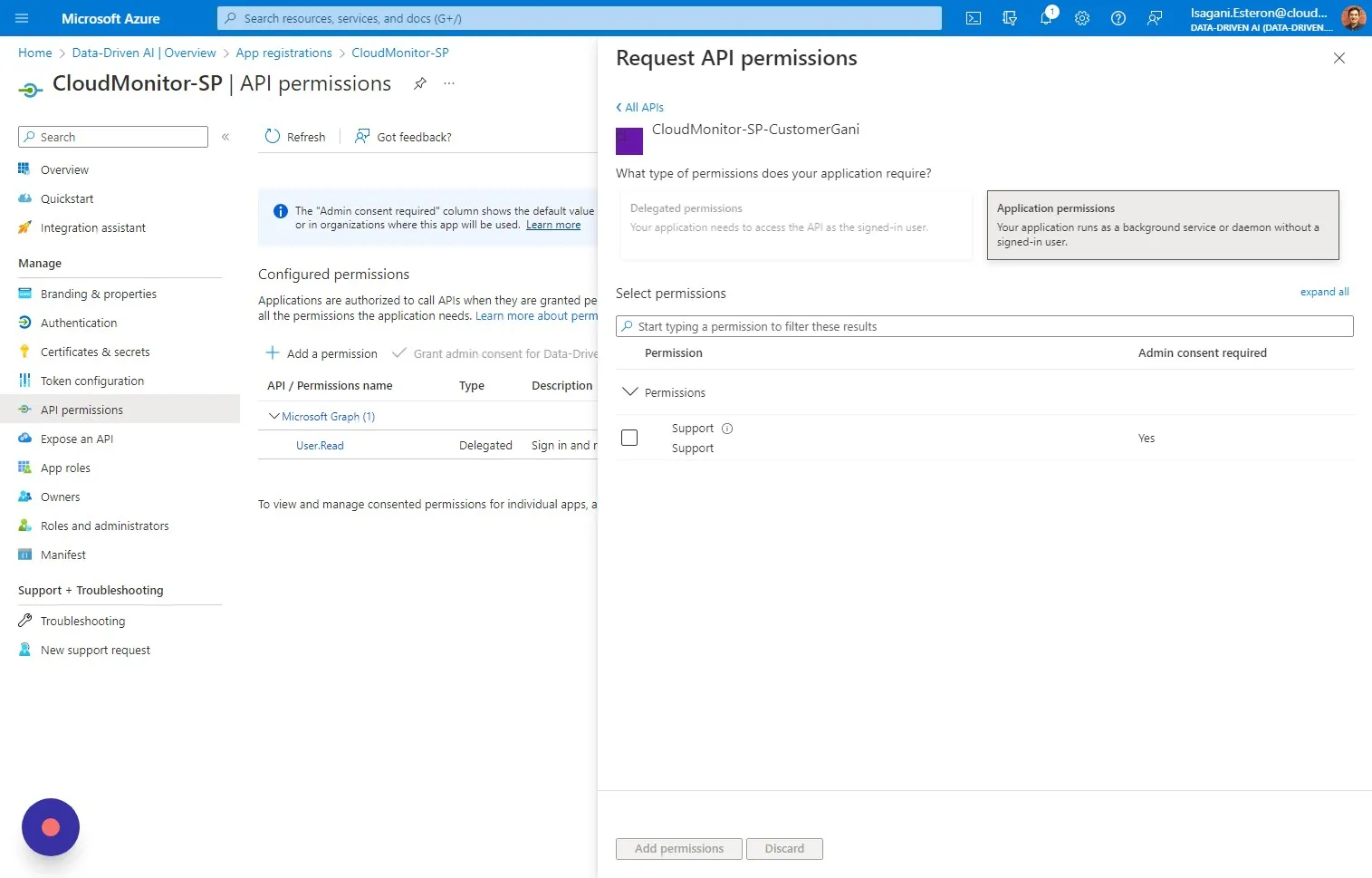
Section titled “Step 1”For Microsoft 365 functionality, CloudMonitor requires specific application permissions to your CloudMonitor Service Principal. These permissions are for accessing required Microsoft 365 data and resources, detailed as follows.
Functionality | Application Permission Required
- Read security events | SecurityEvents.Read.All
- Read all security alert | SecurityAlert.Read.All
- Read service usage reports | Reports.Read.All
- Read call records for all calls | CallRecords.Read.All
- Read the members of all teams | TeamMember.Read.All
- Read names and descriptions of teams| Team.ReadBasic.All
- Read names and descriptions of all channels | Channel.ReadBasic.All
Step 2
Section titled “Step 2”We also offer the option to grant additional permissions to enable analytics on user trends and authentication method counts, providing deeper insights into your organization’s Microsoft 365 usage. Granting these permissions is entirely optional and should be considered based on your organization’s security policies.
Functionality | Application Permission Required
- Read basic information of all users across organization | User.Read.All
- Read user’s authentication methods. | UserAuthenticationMethod.Read.All
Step 3
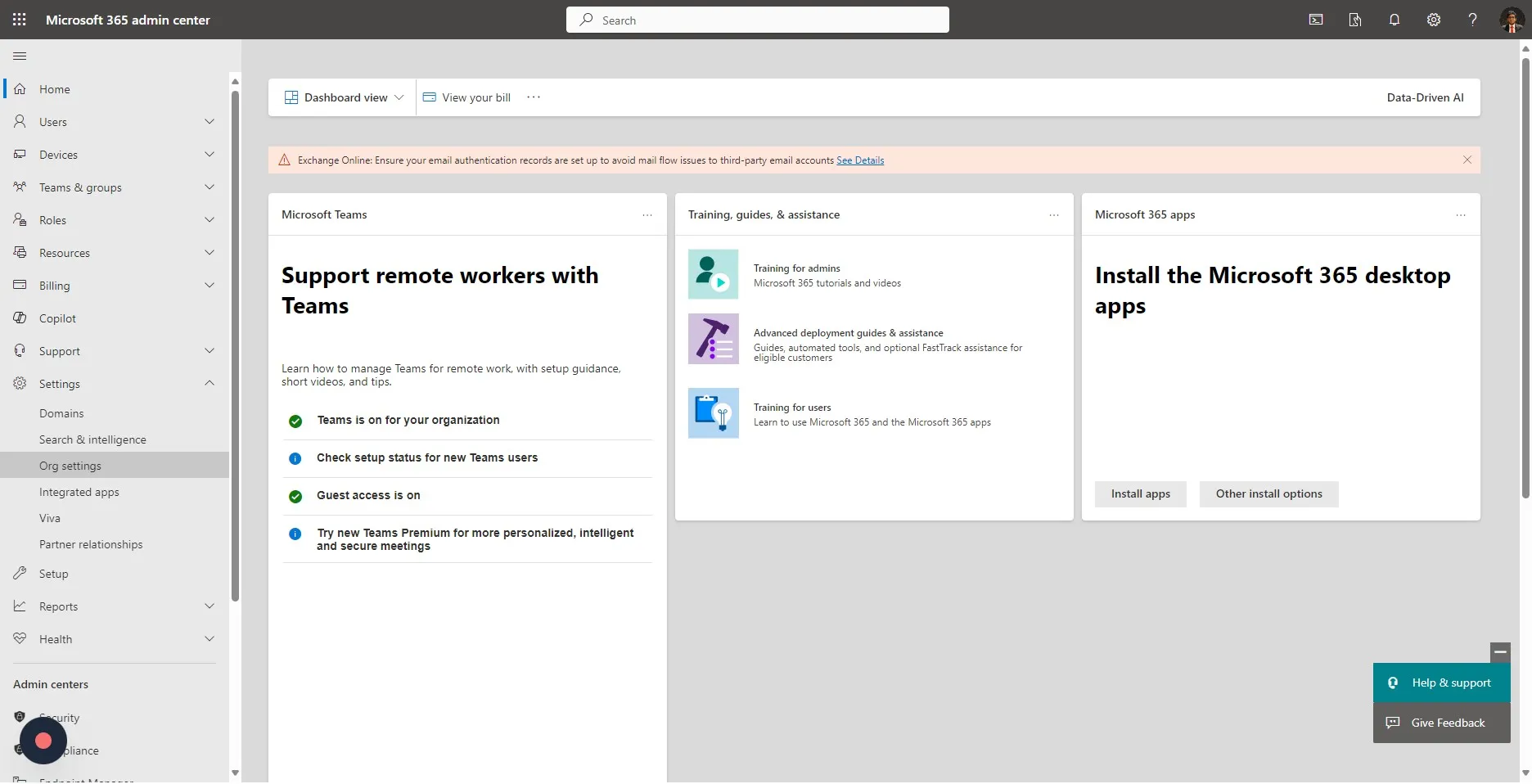
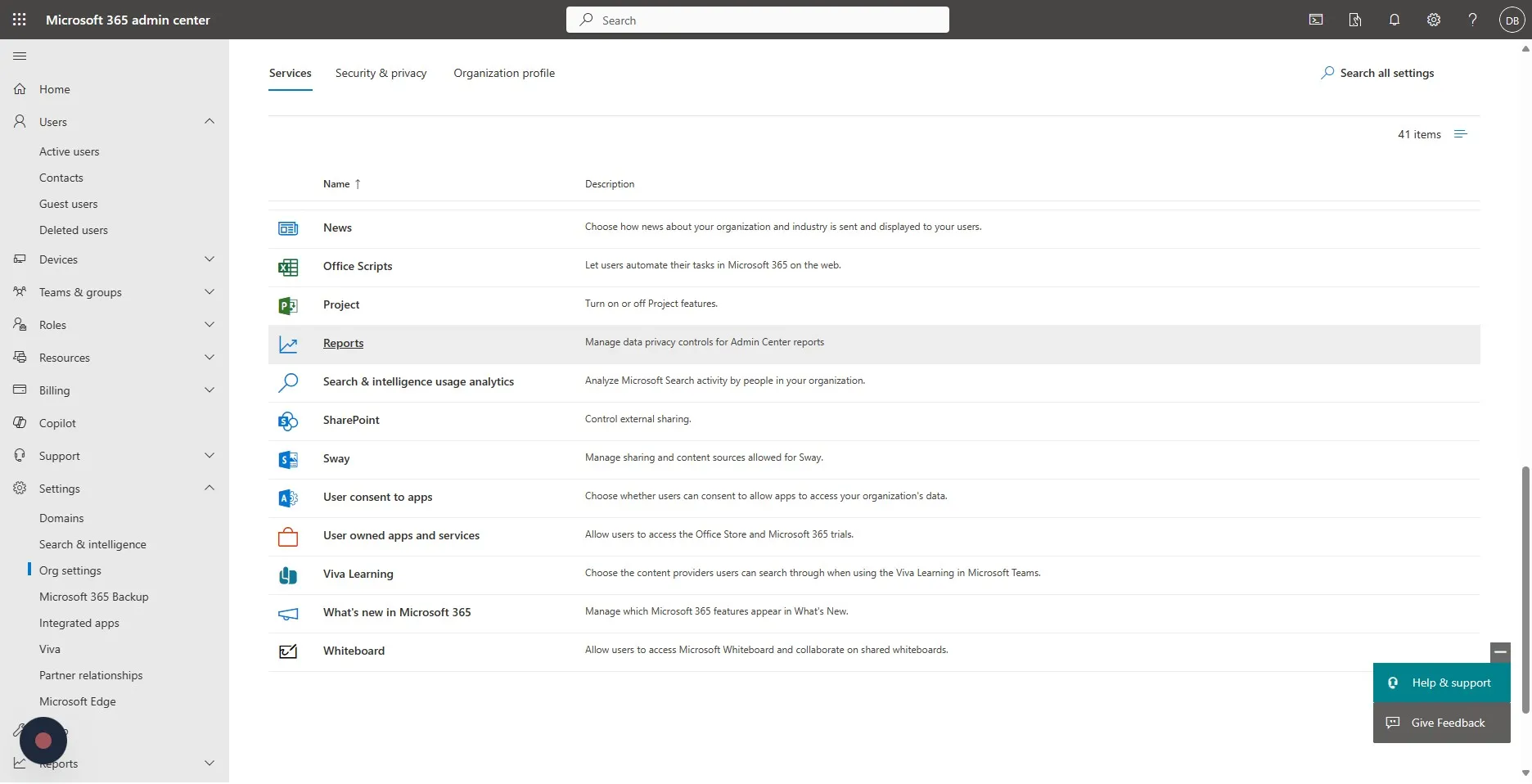
Section titled “Step 3”Next, Navigate to admin.microsoft.com And click “Org settings” under “Settings”
Step 4
Section titled “Step 4”Click “Reports”
Step 5
Section titled “Step 5”Click on tick box which says “Make report data available to Microsoft 365 usage analytics in Power BI”.
Please make sure to untick the “Display concealed user, group and site names in all reports”