How to setup CloudMonitor's Premium Managed Reports
Step 1
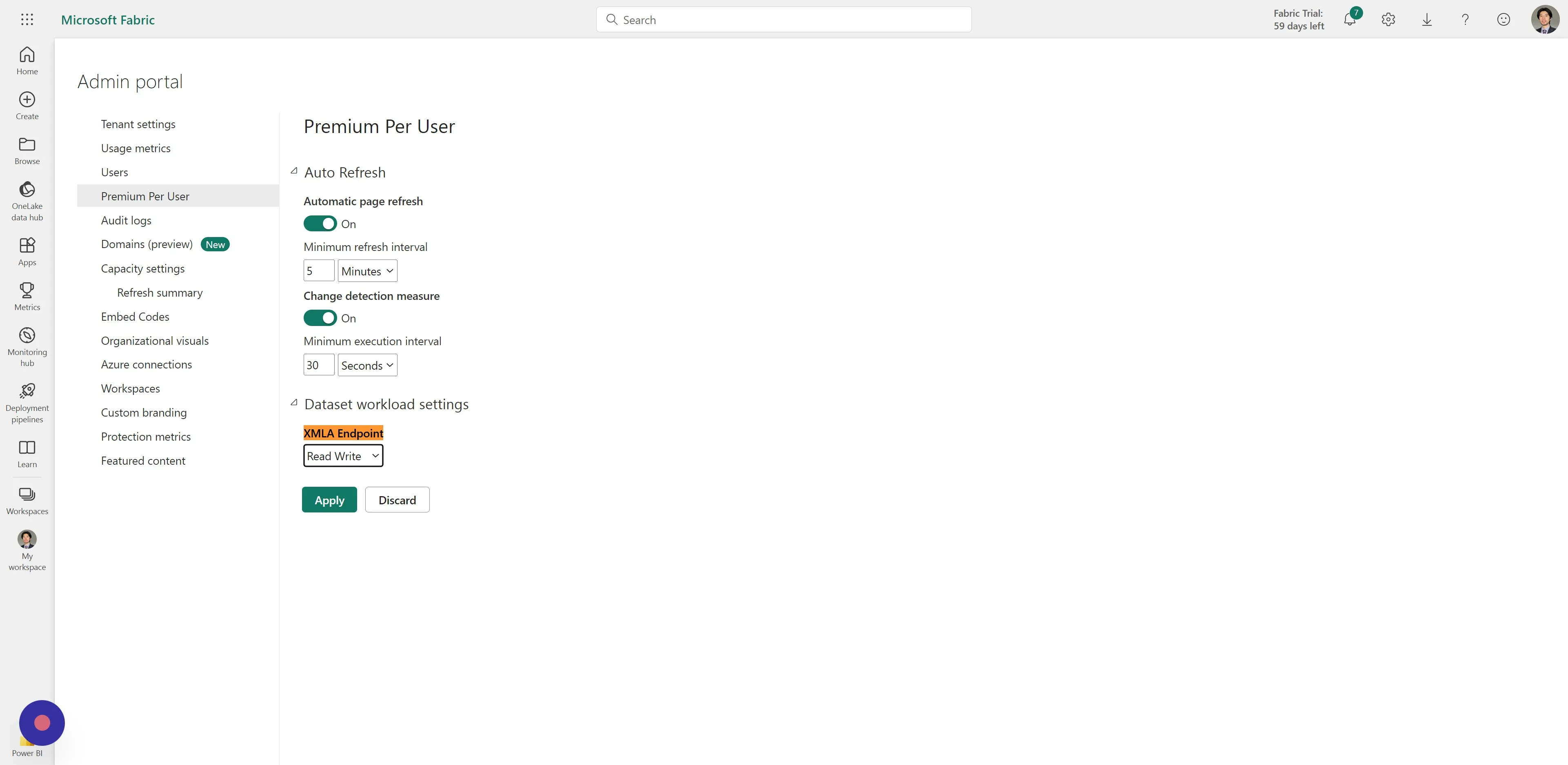
Section titled “Step 1”The process to enable XMLA read-write is slightly different between Fabric Capacity and Premium Per User (PPU). To enable XMLA read-write for PPU:
- Select Settings > Admin portal.
- In the Admin portal, select Premium Per User.
- Expand Dataset workload settings. In the XMLA Endpoint setting, select Read Write.
Step 2
Section titled “Step 2”To enable XMLA read-write for a Fabric capacity:
- Select Settings > Admin portal.
- In the Admin portal, select Capacity settings > Power BI Premium > capacity name.
- Expand Workloads. In the XMLA Endpoint setting, select Read Write.
The XMLA Endpoint setting applies to all workspaces and datasets assigned to the capacity.
Step 3
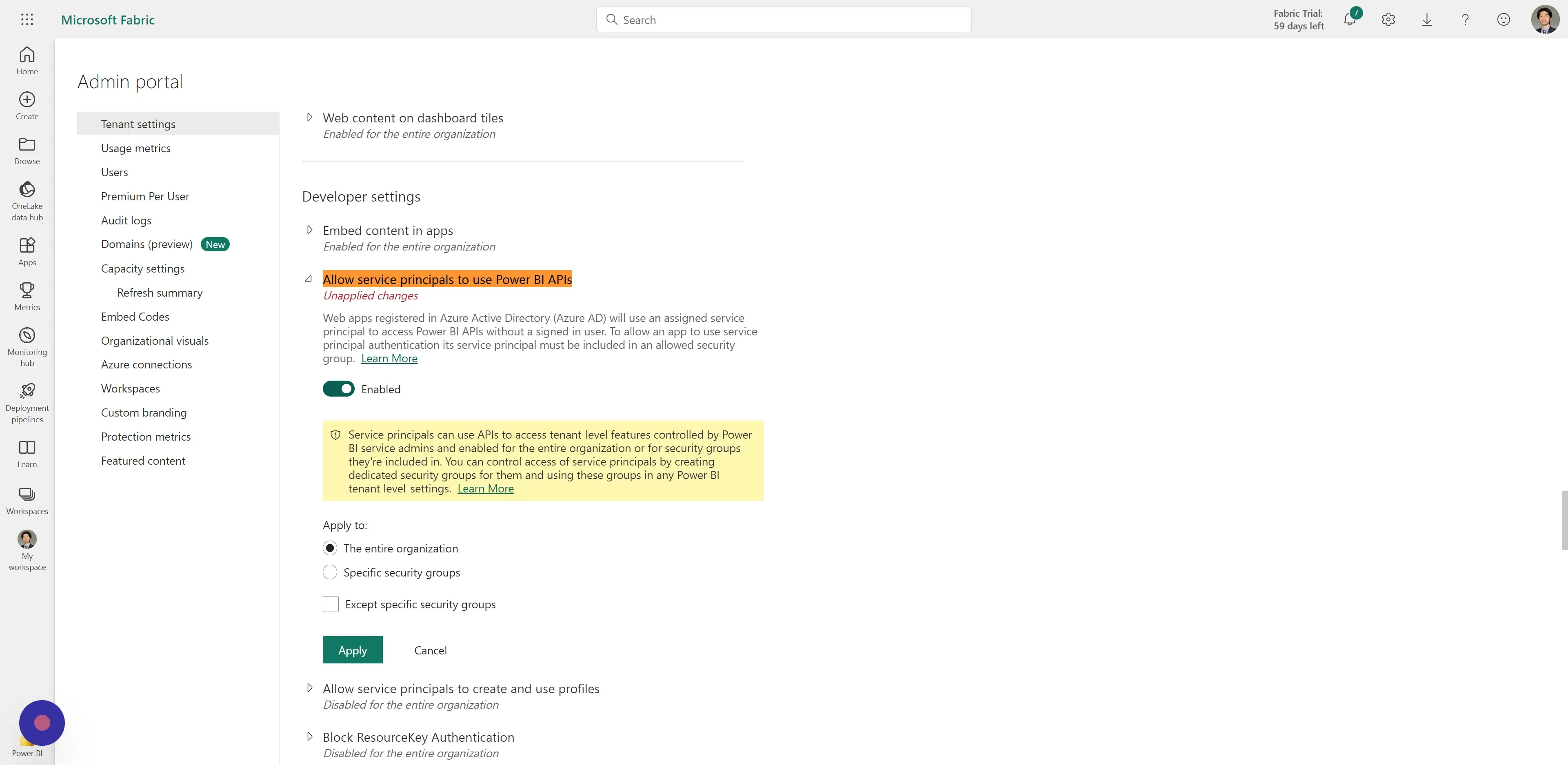
Section titled “Step 3”To enable Allow service principals to use Power BI APIs:
- Select Settings > Admin portal > Tenant Settings > Developer settings
- Enable ‘Allow service principals to use Power BI APIs’
Step 4
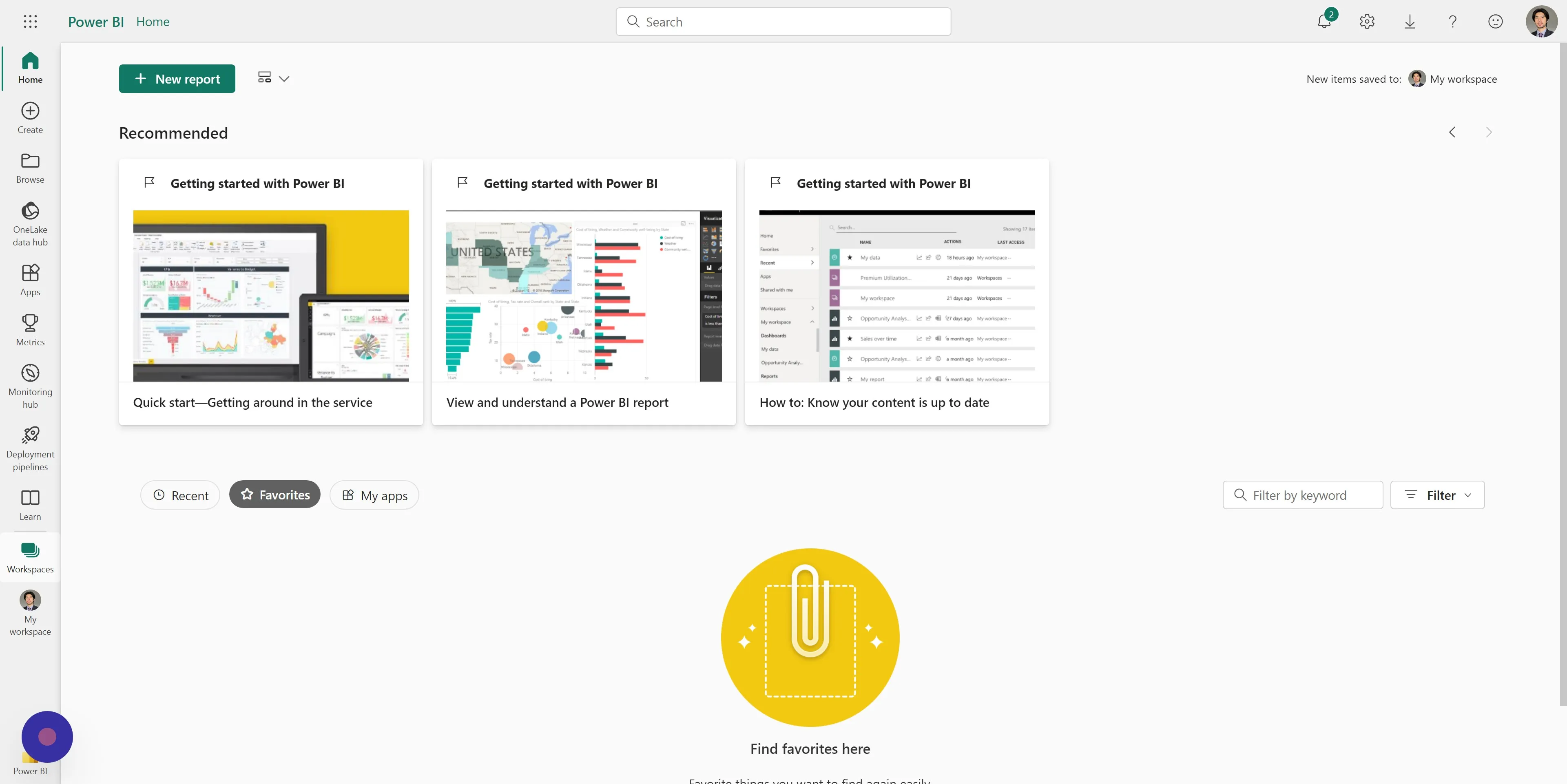
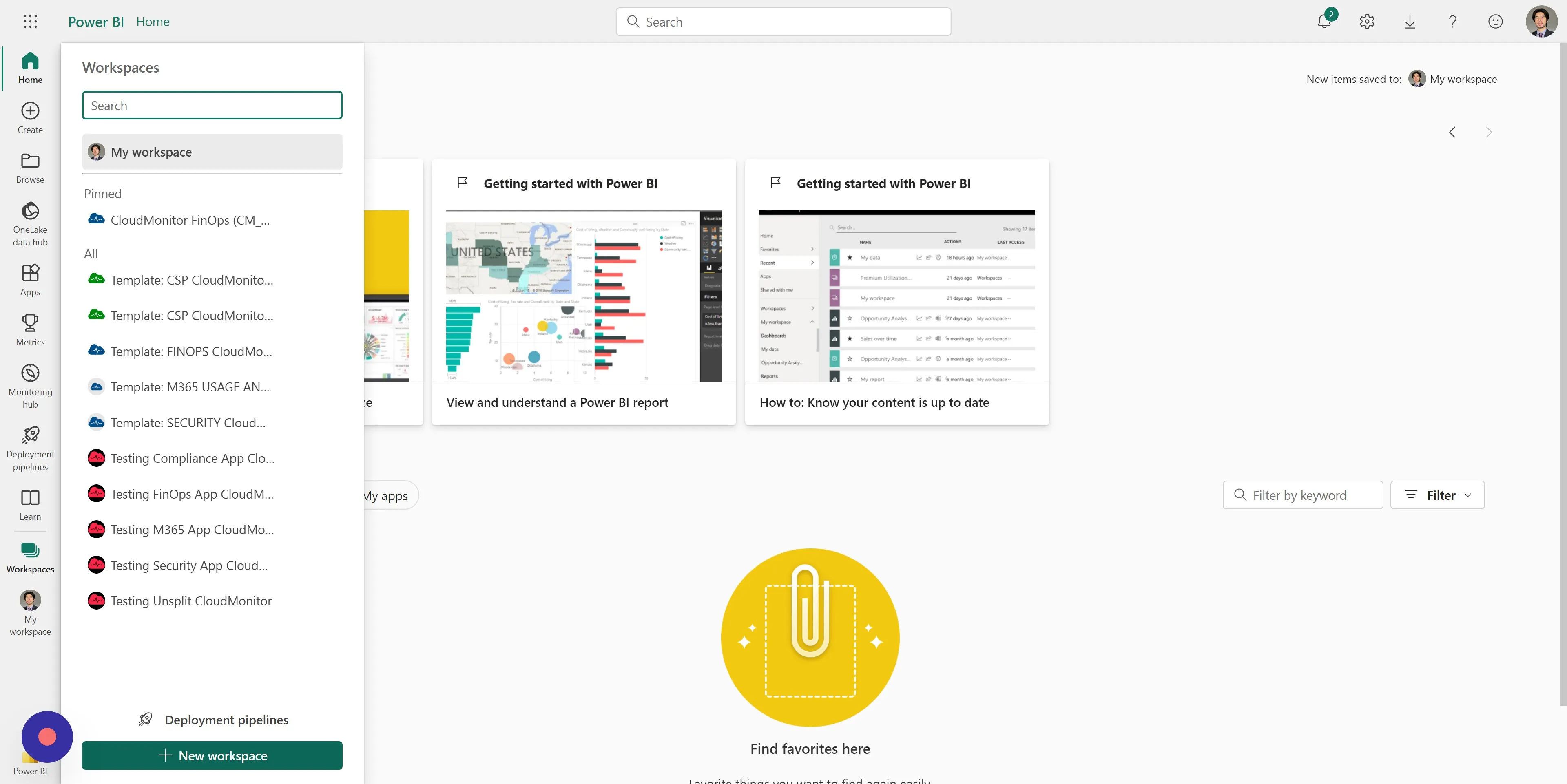
Section titled “Step 4”At this point you should have enabled all required prerequisites. Next, we need to create a new workspace that will be dedicated to the Premium Managed Reports. Click ‘Workspaces’ from the sidebar.
Step 5
Section titled “Step 5”Then click ‘New Workspace.’
Step 6
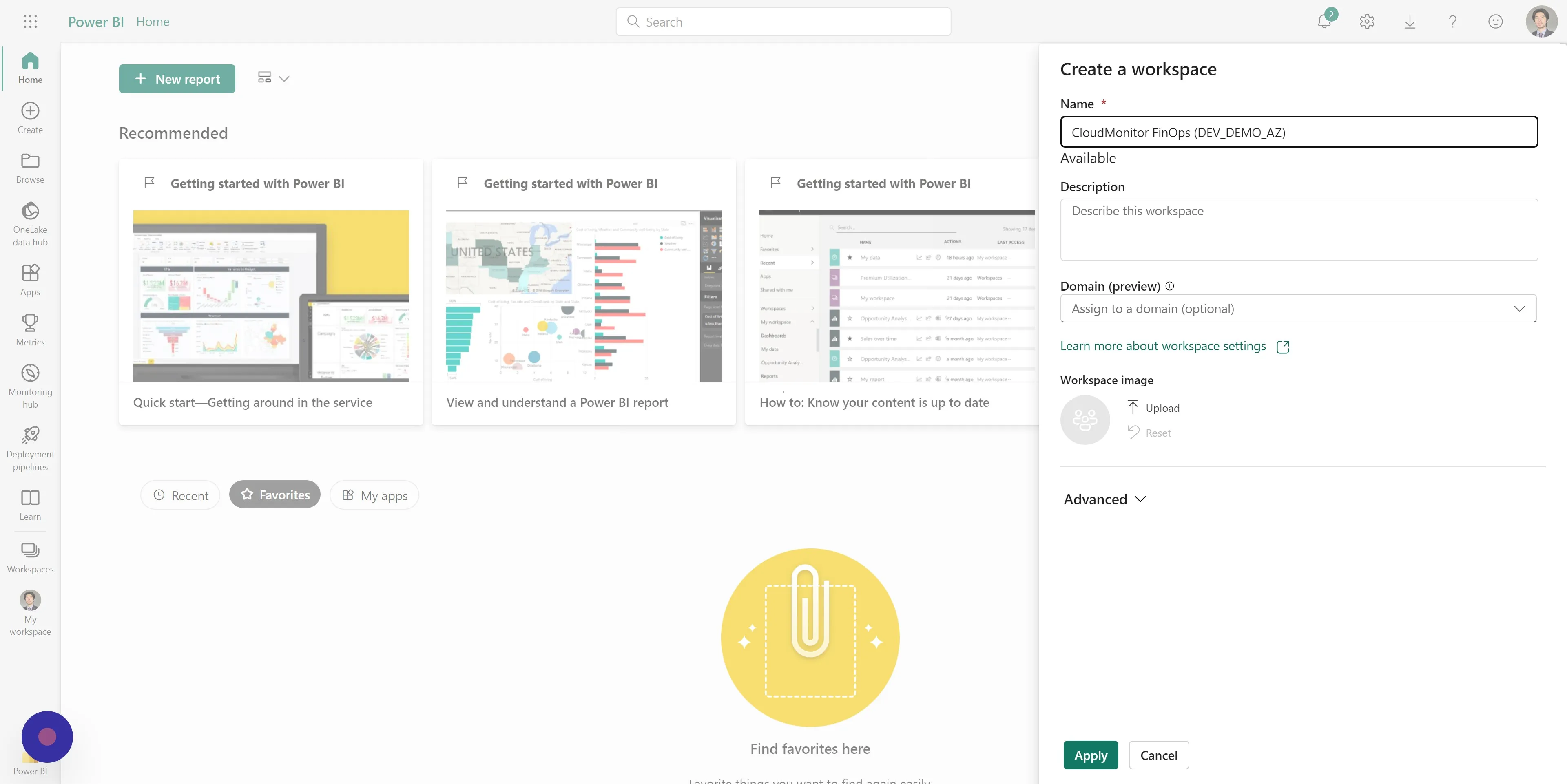
Section titled “Step 6”We suggest naming the workspace as “CloudMonitor FinOps” however you are free to choose any name that best suits your preference.
Step 7

Section titled “Step 7”Click ‘Manage access’ and add the service principal tied to your CloudMonitor instance with “Contributor” access permissions.
Step 8
Section titled “Step 8”Then notify us by sending an email to support@cloudmonitor.ai with your Workspace URL and XMLA endpoint.
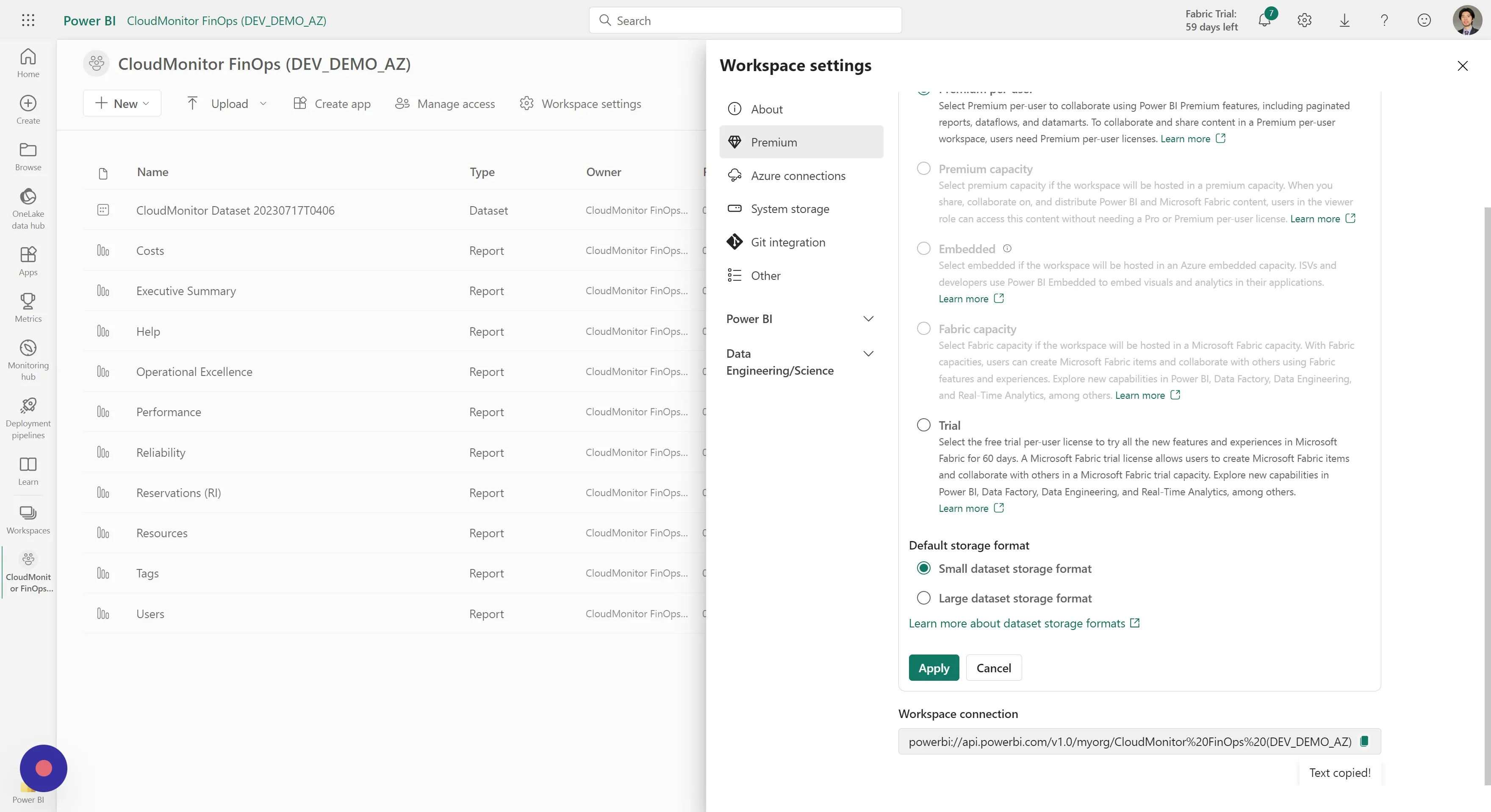
• Your Workspace URL can be obtained from the address bar. • Your XMLA endpoint can be obtained via Workspace Settings > Premium > Workspace connection.
Step 9
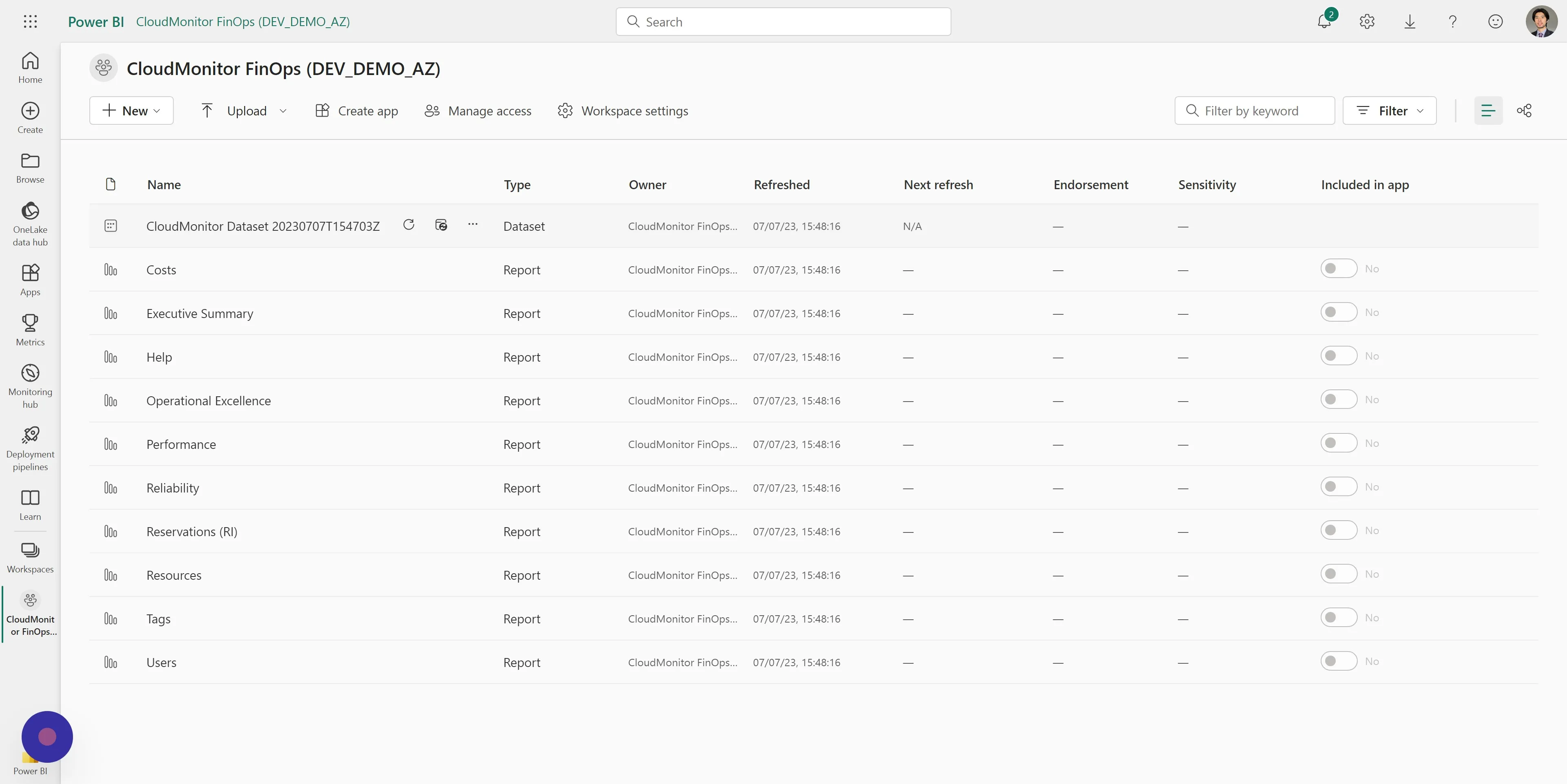
Section titled “Step 9”Once complete, your Power BI Workspace should display similar resources as seen in the image below. You can now access your CloudMonitor reports directly by clicking on any of the reports.