Connect the PowerBI Reporting to the Analytics Engine
To connect Power BI to CloudMonitor Analytics Engine, you need to send us an email first requesting your Power BI login credentials.
Note: You will not be able to connect the Power BI reports to SQL without contacting our support staff as we need to configure the CloudMonitor Analytics Engine first in order to give you your personal credentials.
If you already have your Power BI login credentials, you can now proceed to connect your data to view your Azure costs.
Connecting the PowerBI Reporting to the Analytics Engine
Section titled “Connecting the PowerBI Reporting to the Analytics Engine”Step 1: Click “Connect your data”
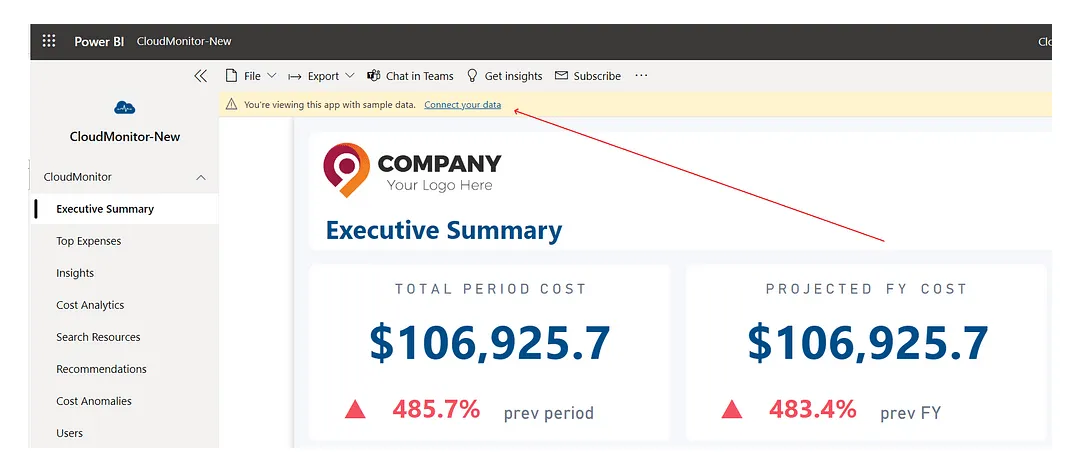
Section titled “Step 1: Click “Connect your data””From the Power BI Report dashboard, click on the “Connect your data” link found at the topmost part of the page:
Step 2: Enter your CustomerId
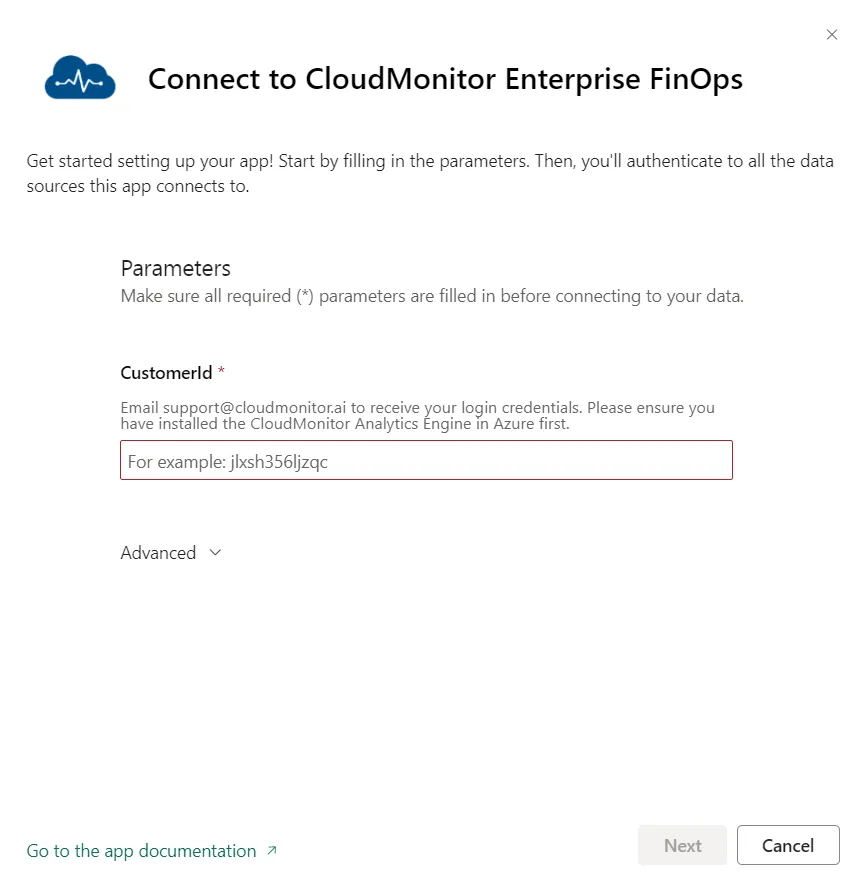
Section titled “Step 2: Enter your CustomerId”After sending an email, you will receive an email containing the CustomerId and Credentials. Here’s an example data:
-
CustomerId: jlxsh356ljzqc
-
Password: YourUniquePassword
Enter your CustomerId (it will look something like this: jlxsh356ljzqc) into the popup screen.
Ensure that your daily refresh is set to “On” then hit “Next”.
Step 3: Enter your Credentials (Step No. 1 of 2)
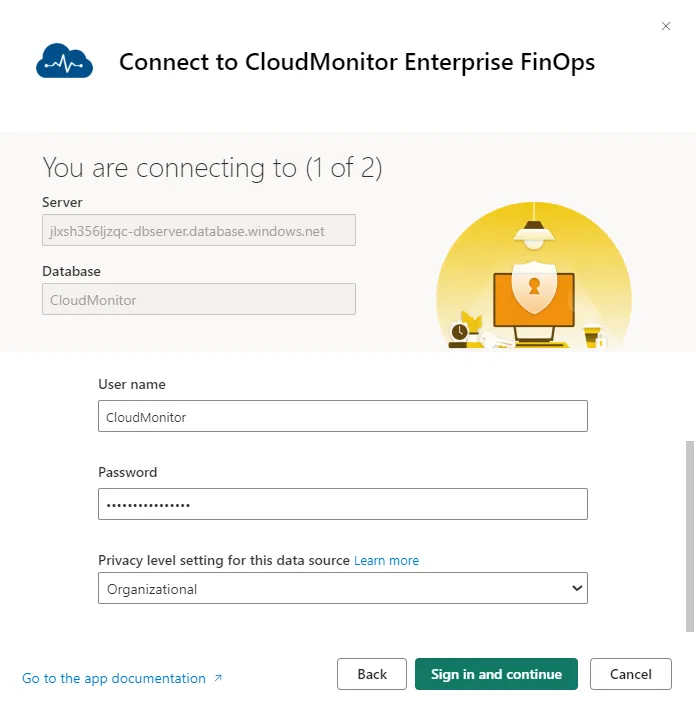
Section titled “Step 3: Enter your Credentials (Step No. 1 of 2)”Leave the Authentication Method as “Basic” and copy the Username (Default Username - CloudMonitor) and Password into the textbox. Then set the Privacy level settings as “Organizational“ and click “Sign in and connect”.
Step 4:** **Enter your Credentials (Step No. 2 of 2)
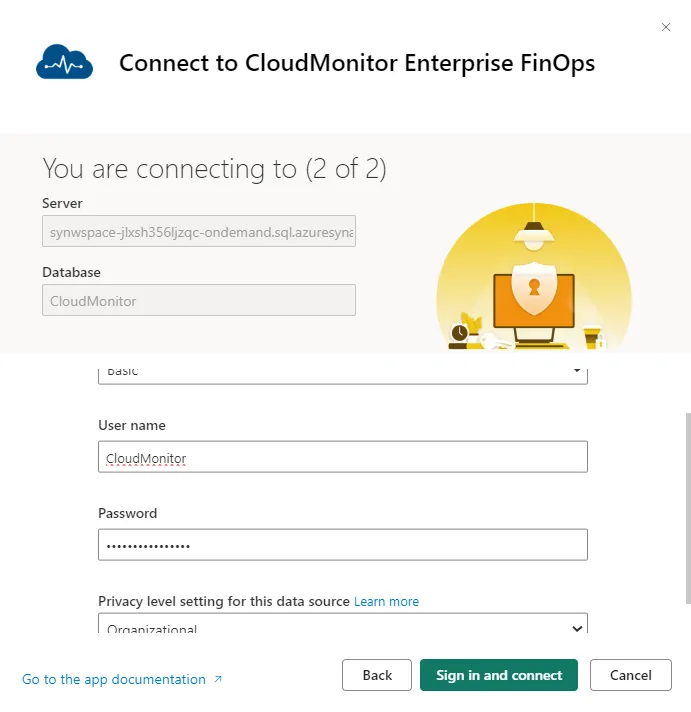
Section titled “Step 4:** **Enter your Credentials (Step No. 2 of 2)”After clicking “Sign in and Connect” another dialog will open, Select Privacy level settings as “Organizational “. Then, enter the same Username and credentials used in the previous step. Leave the Authentication Method as “Basic”.
Step 5: Click on “Sign in and connect”
Section titled “Step 5: Click on “Sign in and connect””After you click on “Sign in and connect,” your Power BI report will refresh and show you your own cost insights.
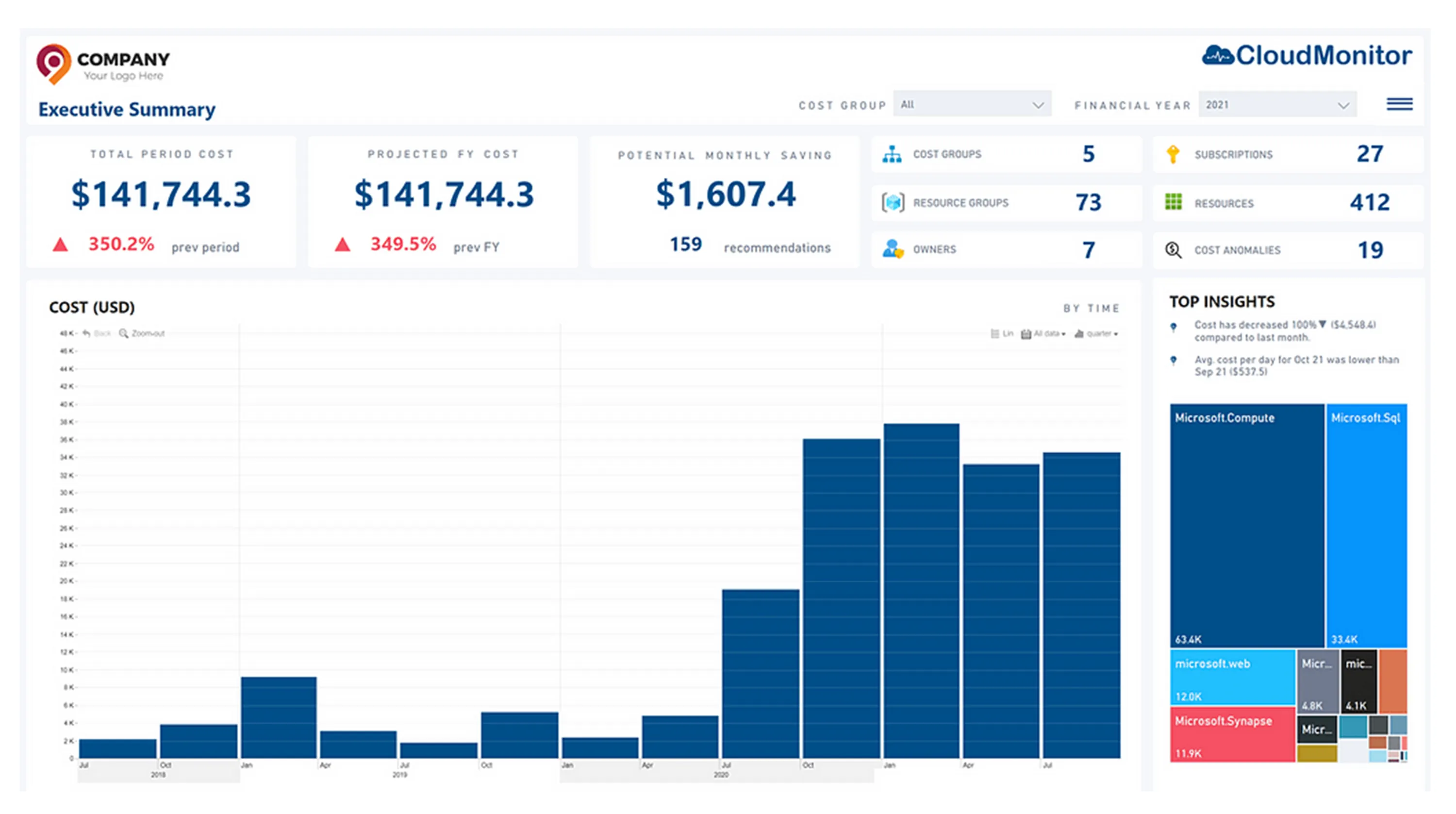
Note: This can take from 5 minutes to 45 minutes depending on the size of your Azure estate.
Index: