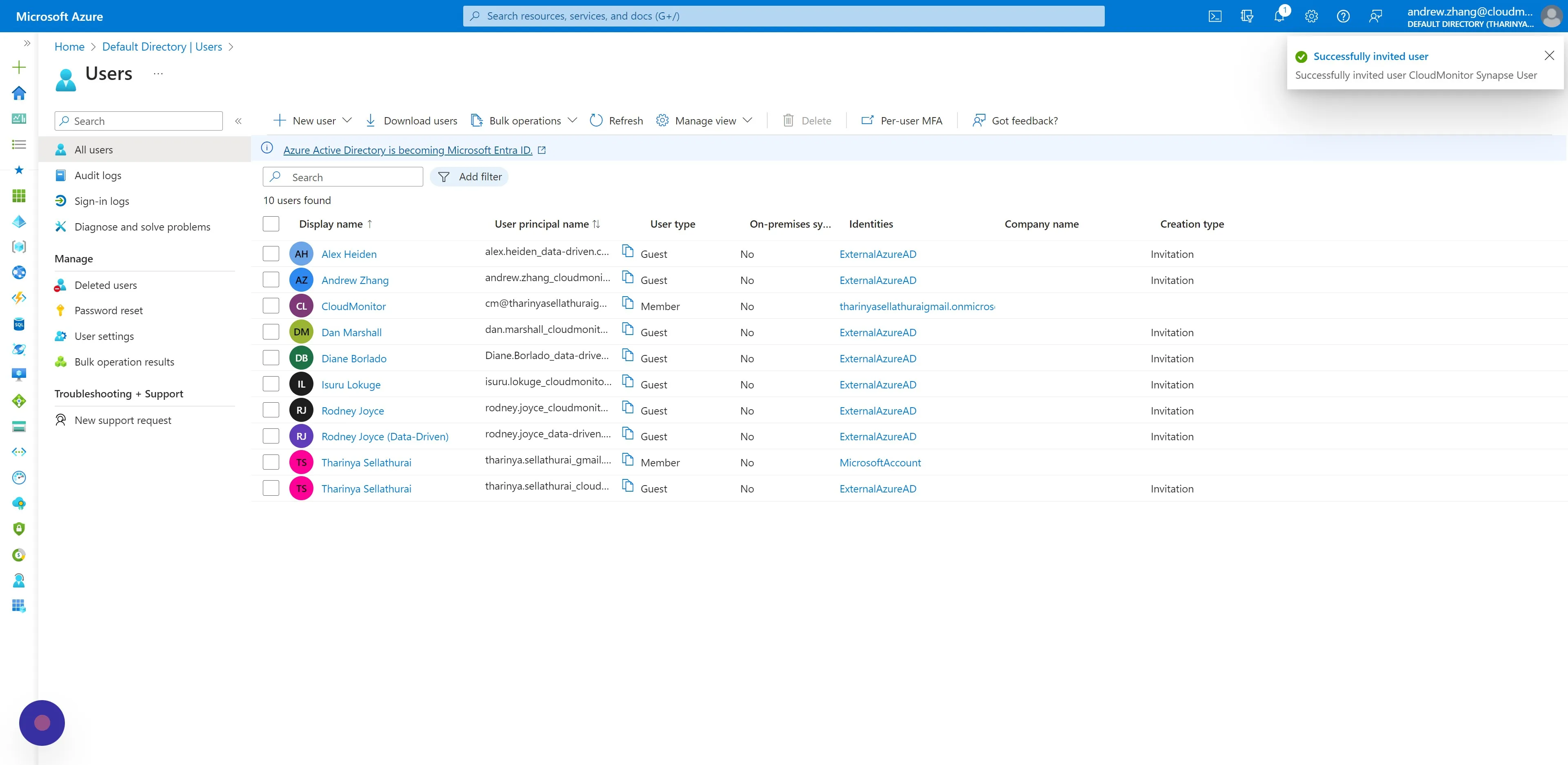
How to create the CloudMonitor Synapse B2B User
Step 1
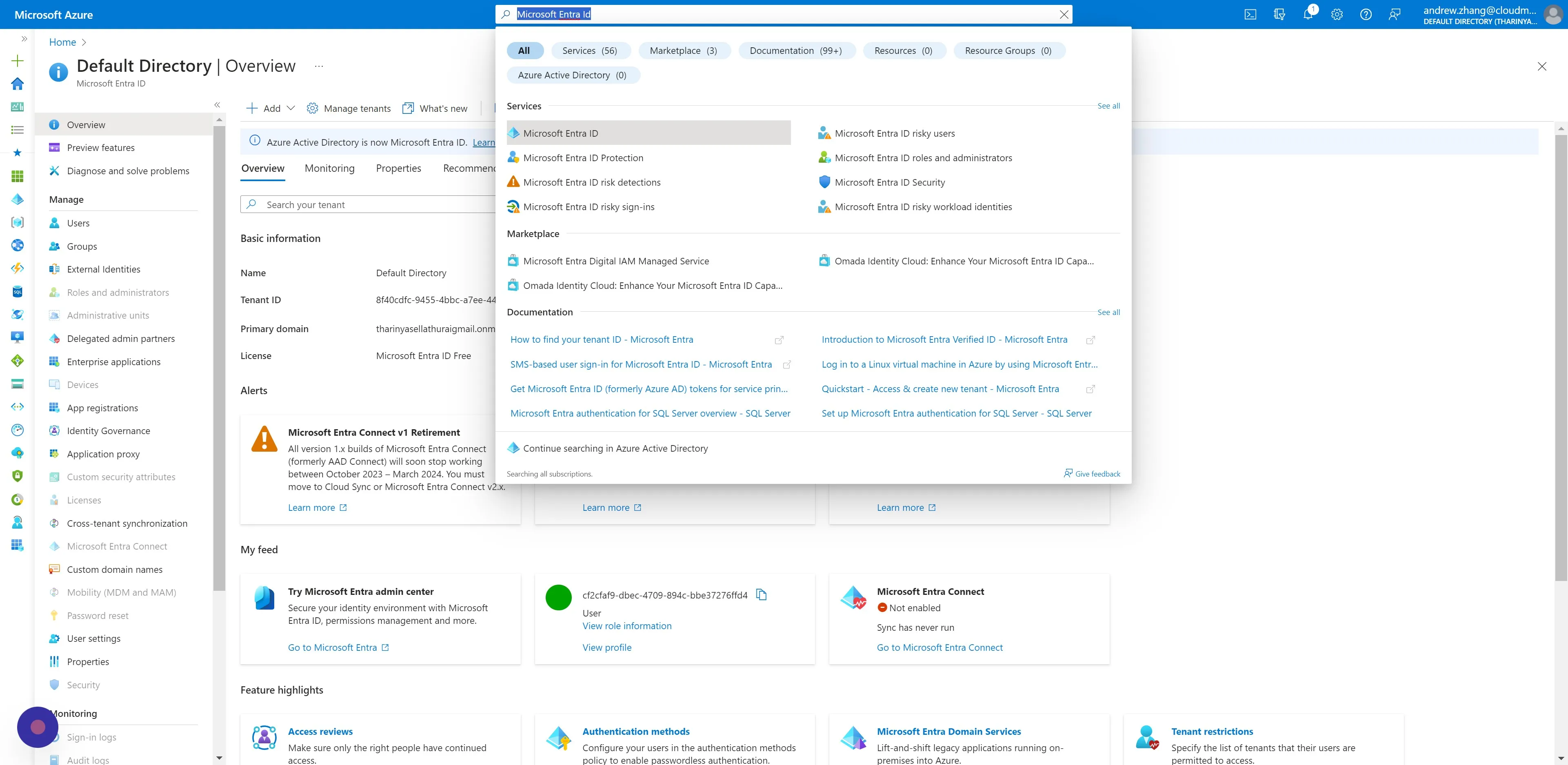
Section titled “Step 1”Navigate to “Microsoft Entra Id” (formerly known as Azure AD).
Step 2
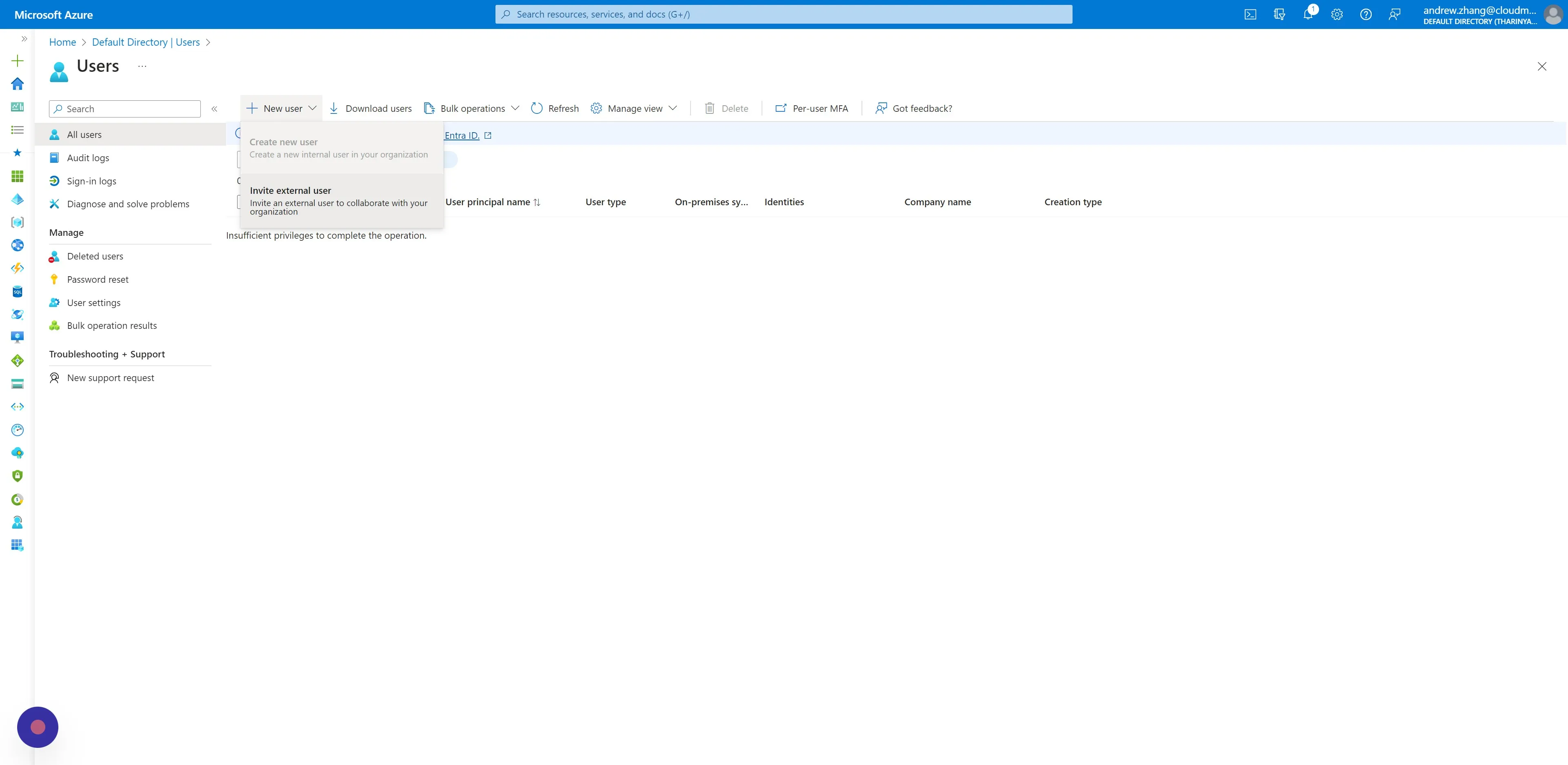
Section titled “Step 2”Click “Users” under the Manage blade. Then click “New user” and “Invite external user”.
Step 3
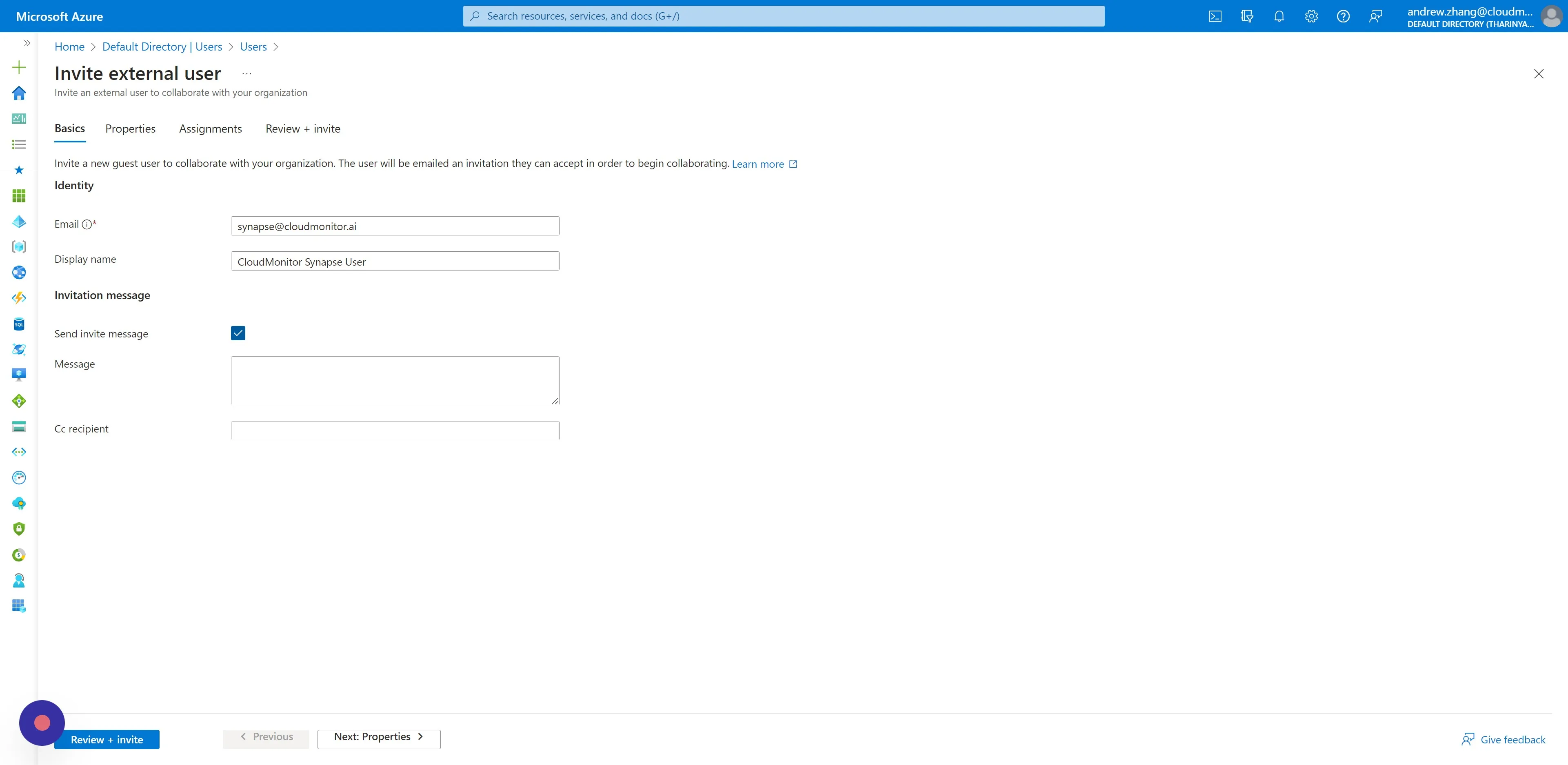
Section titled “Step 3”- Enter synapse@cloudmonitor.ai as the email address.
- Enter “CloudMonitor Synapse User” as the Display name.
- Tick “Send invite message” (leave the Message field empty).
Step 4
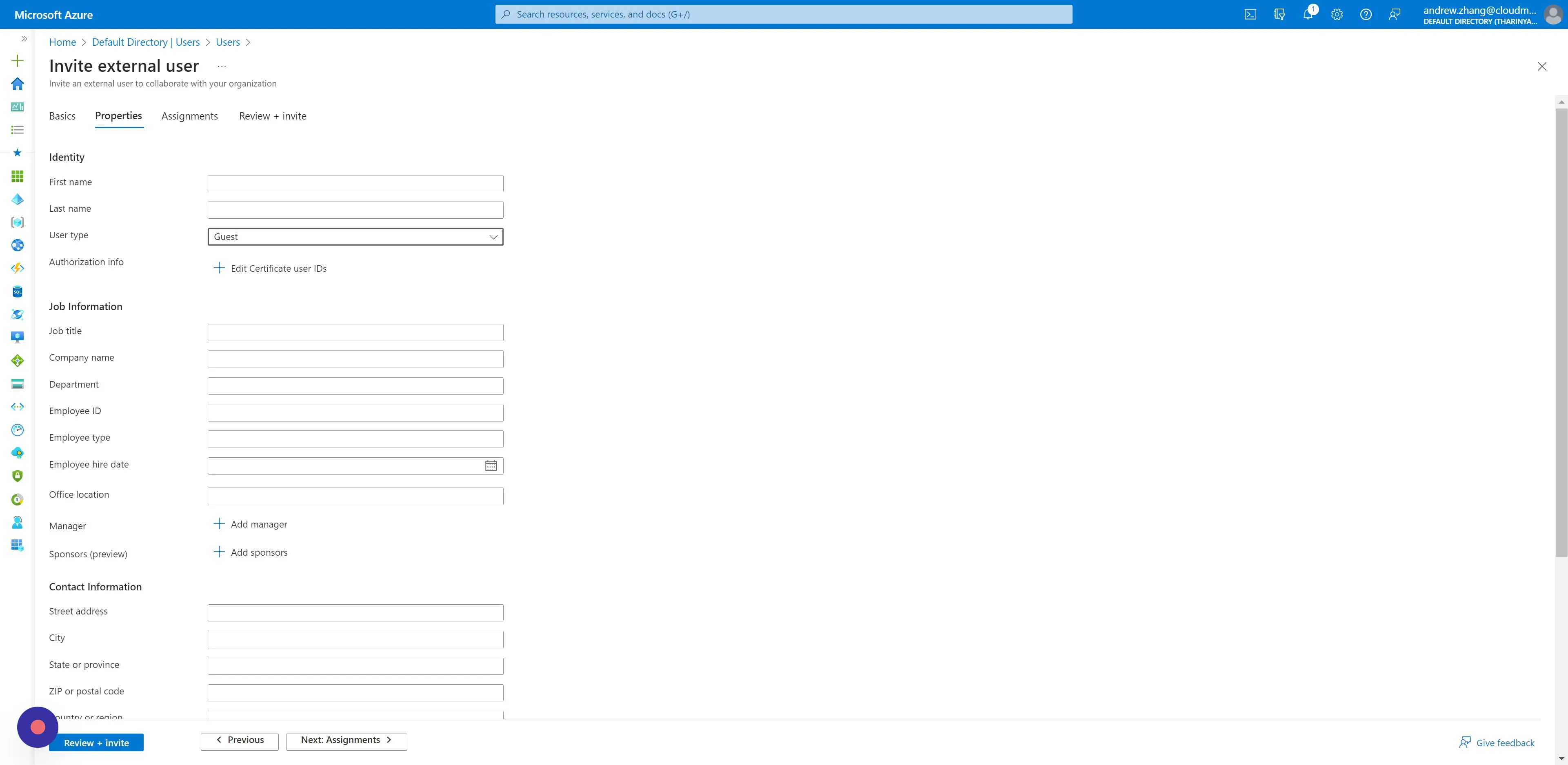
Section titled “Step 4”Switch to the Properties tab, and ensure the User type is set to “Guest”.
Step 5
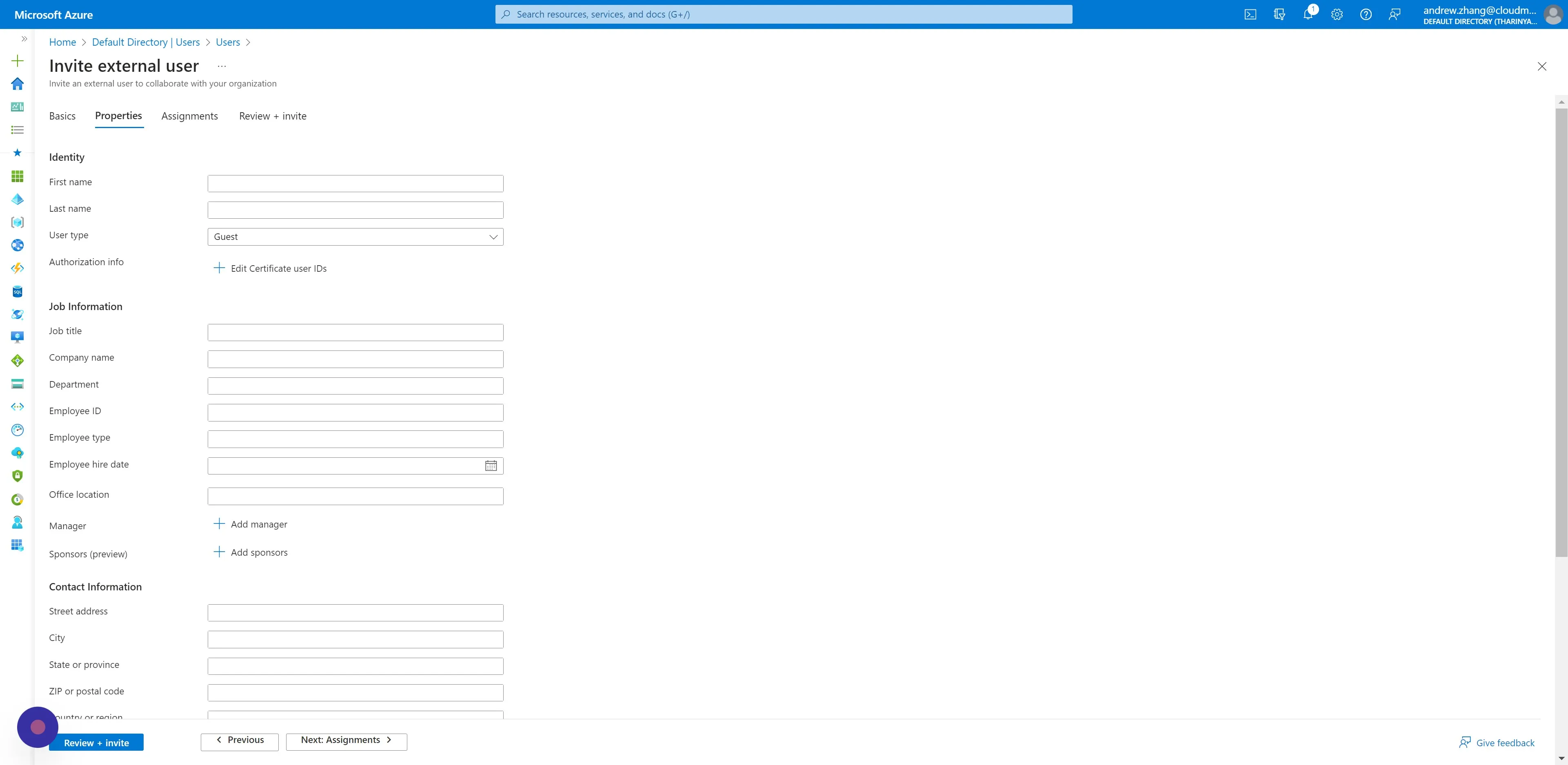
Section titled “Step 5”No other configuration settings are required.
Click “Review + invite” and then click “Invite” once reviewed.
Step 6
Section titled “Step 6”You will receive a notification for successfully creating the Guest B2B User.