Configure your Service Principal to Monitor Subscriptions
Step 1
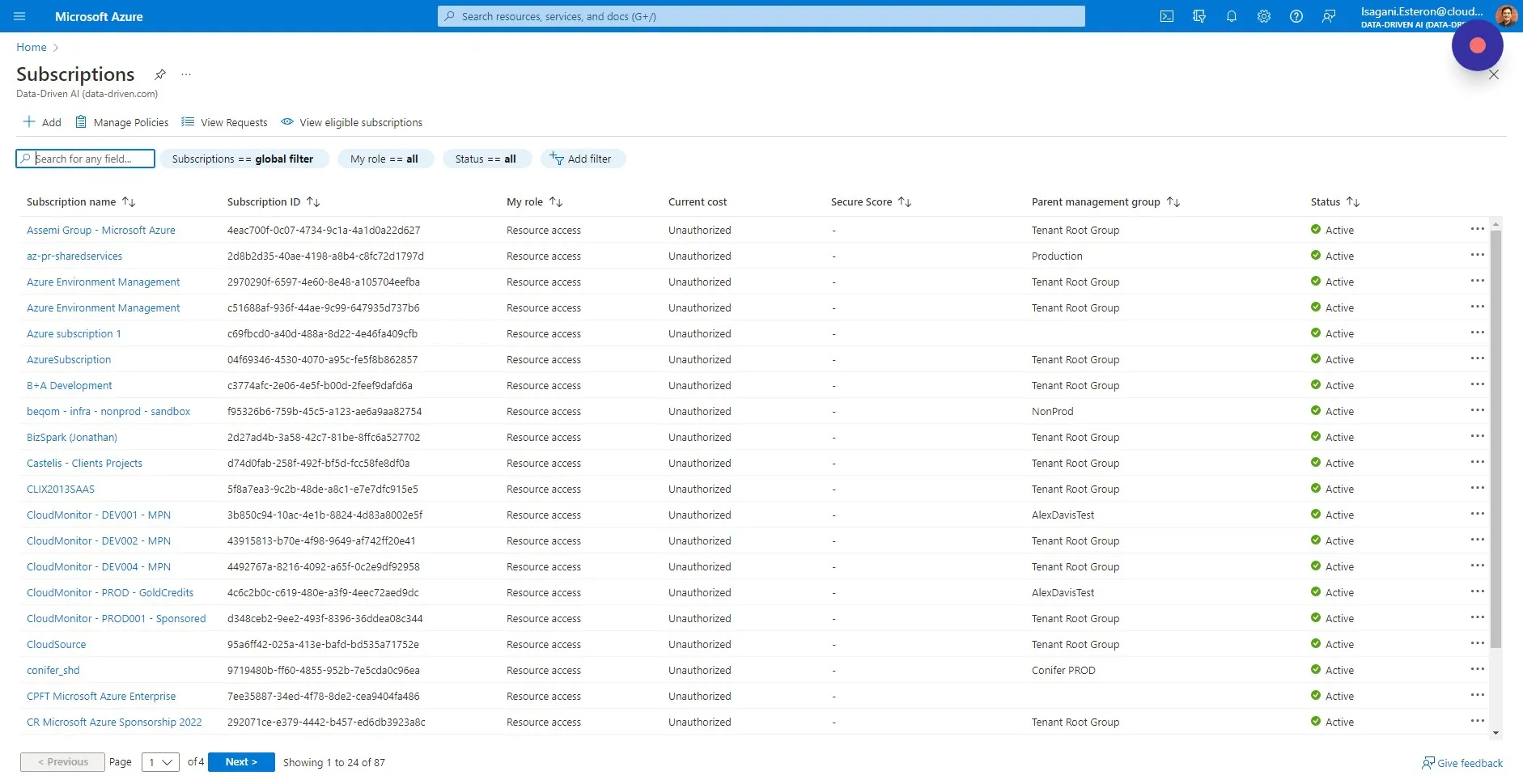
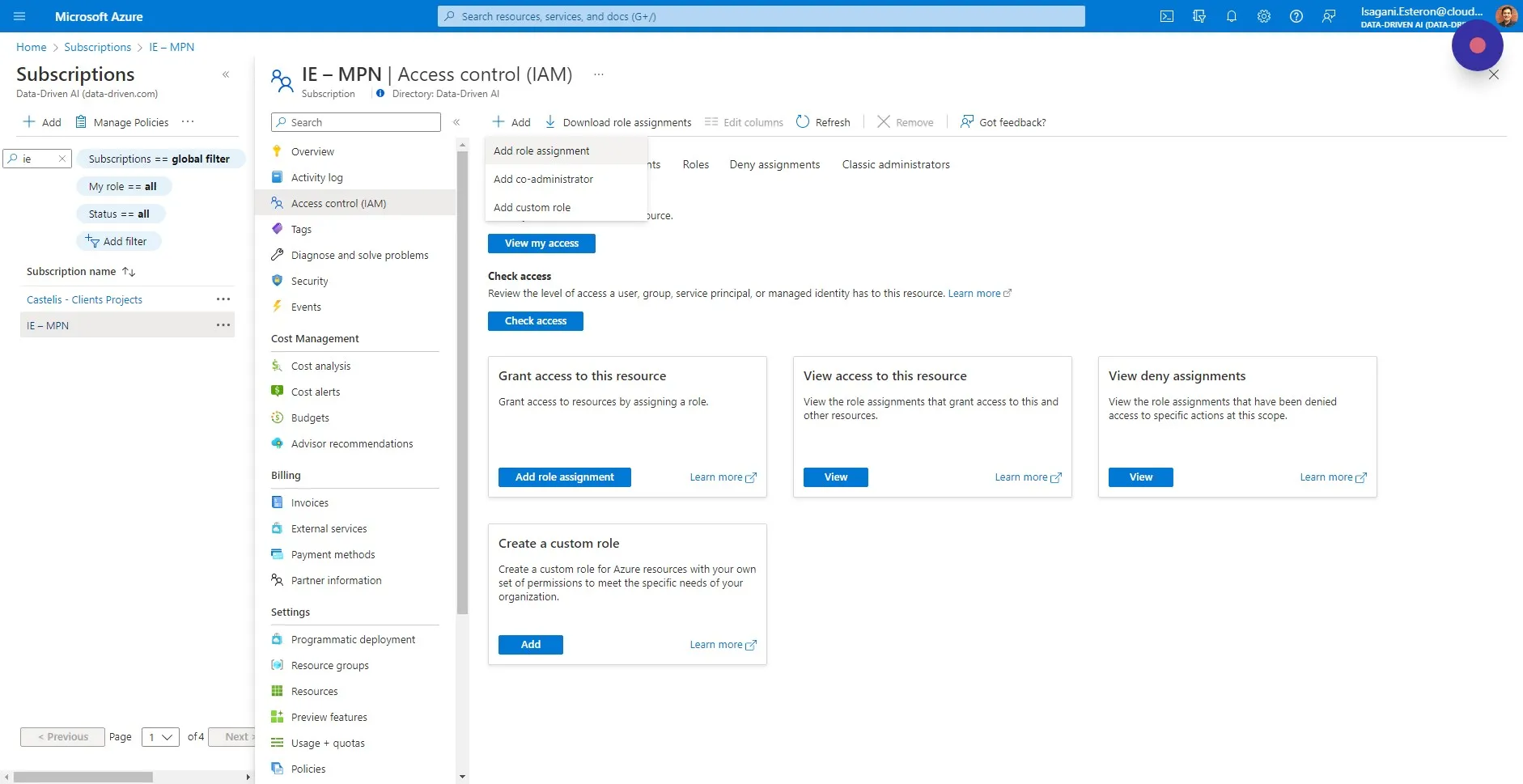
Section titled “Step 1”For each Azure Subscription that you want to monitor, add the CloudMonitor Service Principal that you selected during installation as the READER role at the Subscription scope. Start by selecting the Azure Subscription in the Azure portal:
Step 2
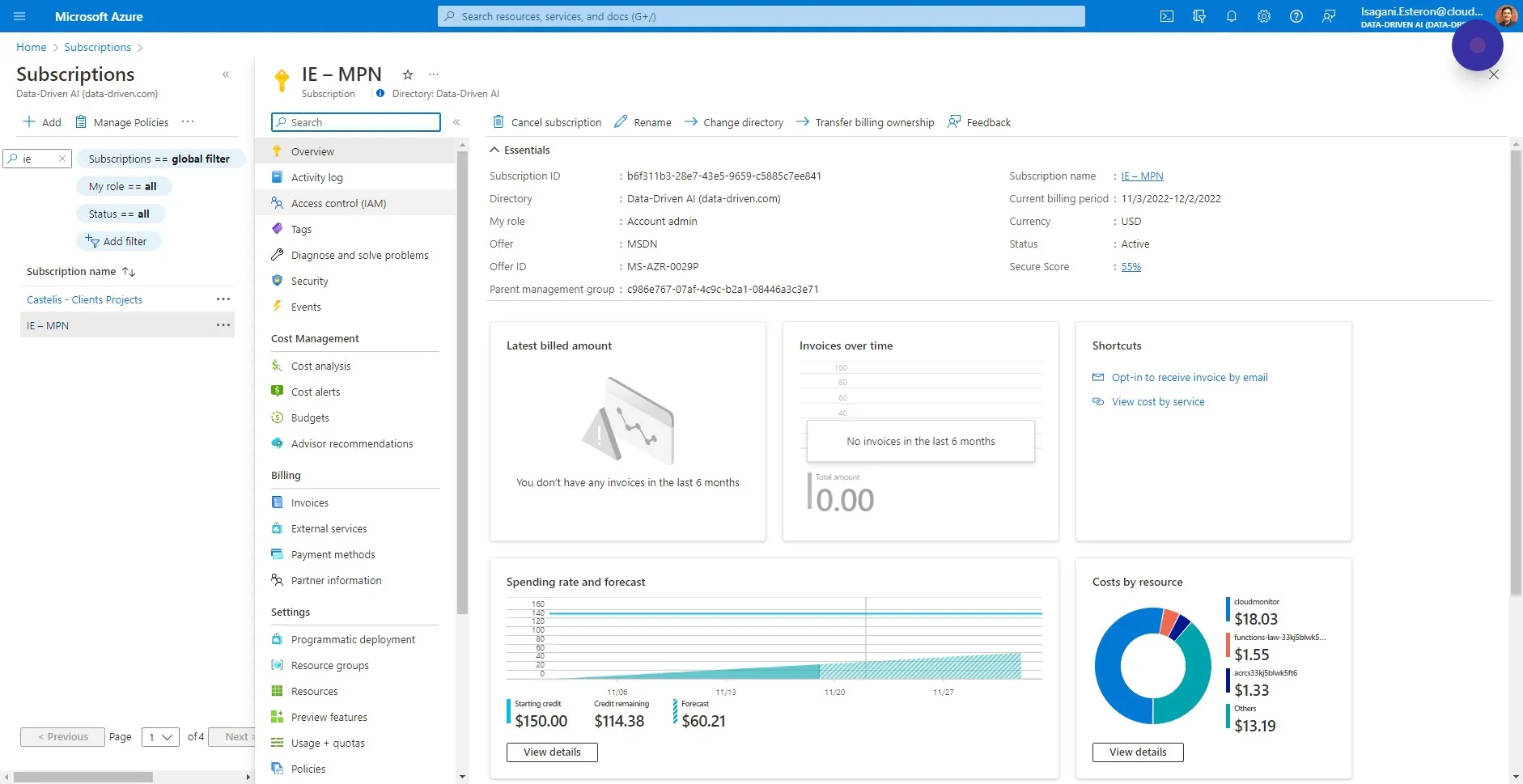
Section titled “Step 2”Click on “Access control (IAM)” inside of the Subscription.
Step 3
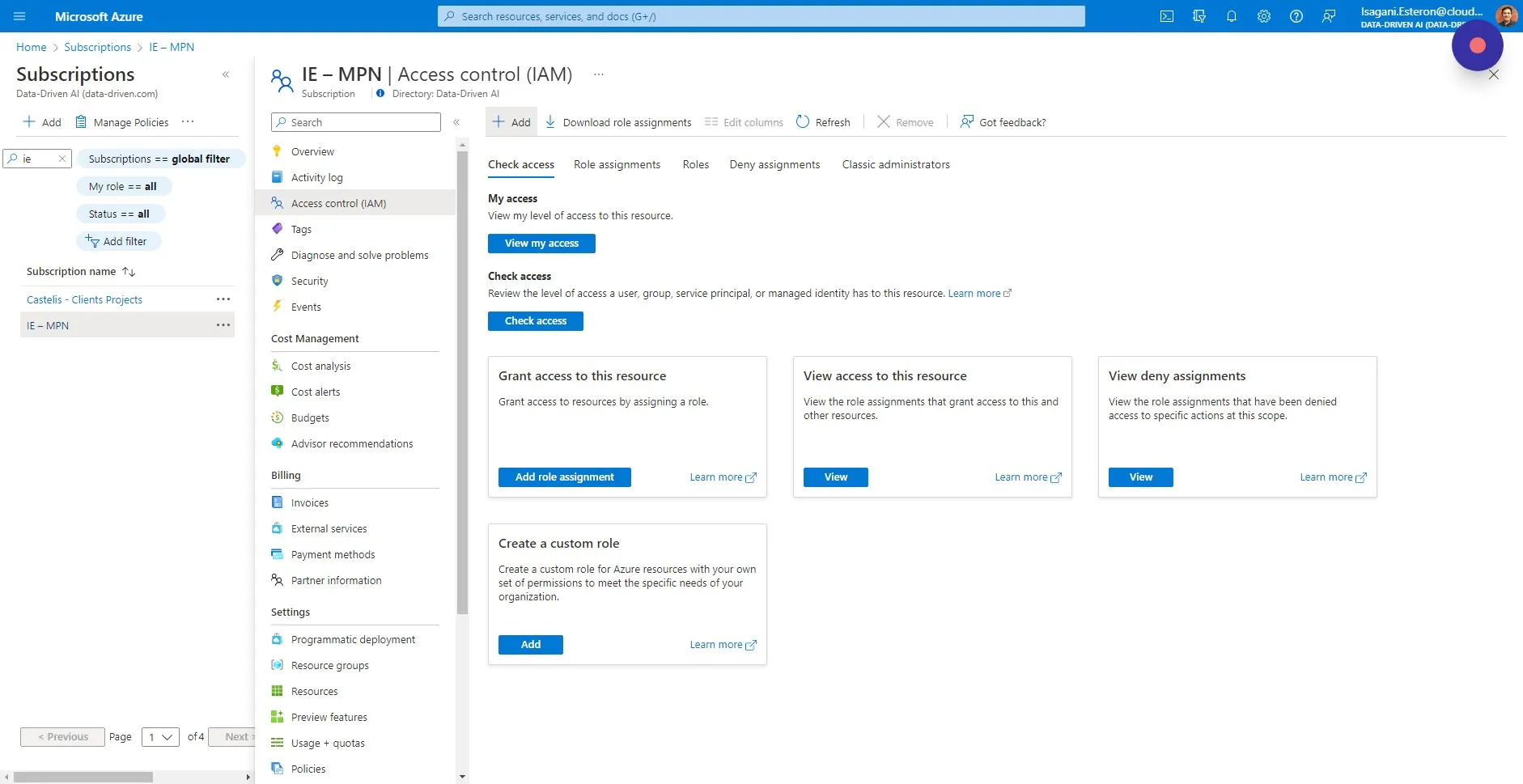
Section titled “Step 3”Click ”+ Add” to add a new Role/Scope.
Step 4
Section titled “Step 4”Choose “Add role assignment”
Step 5
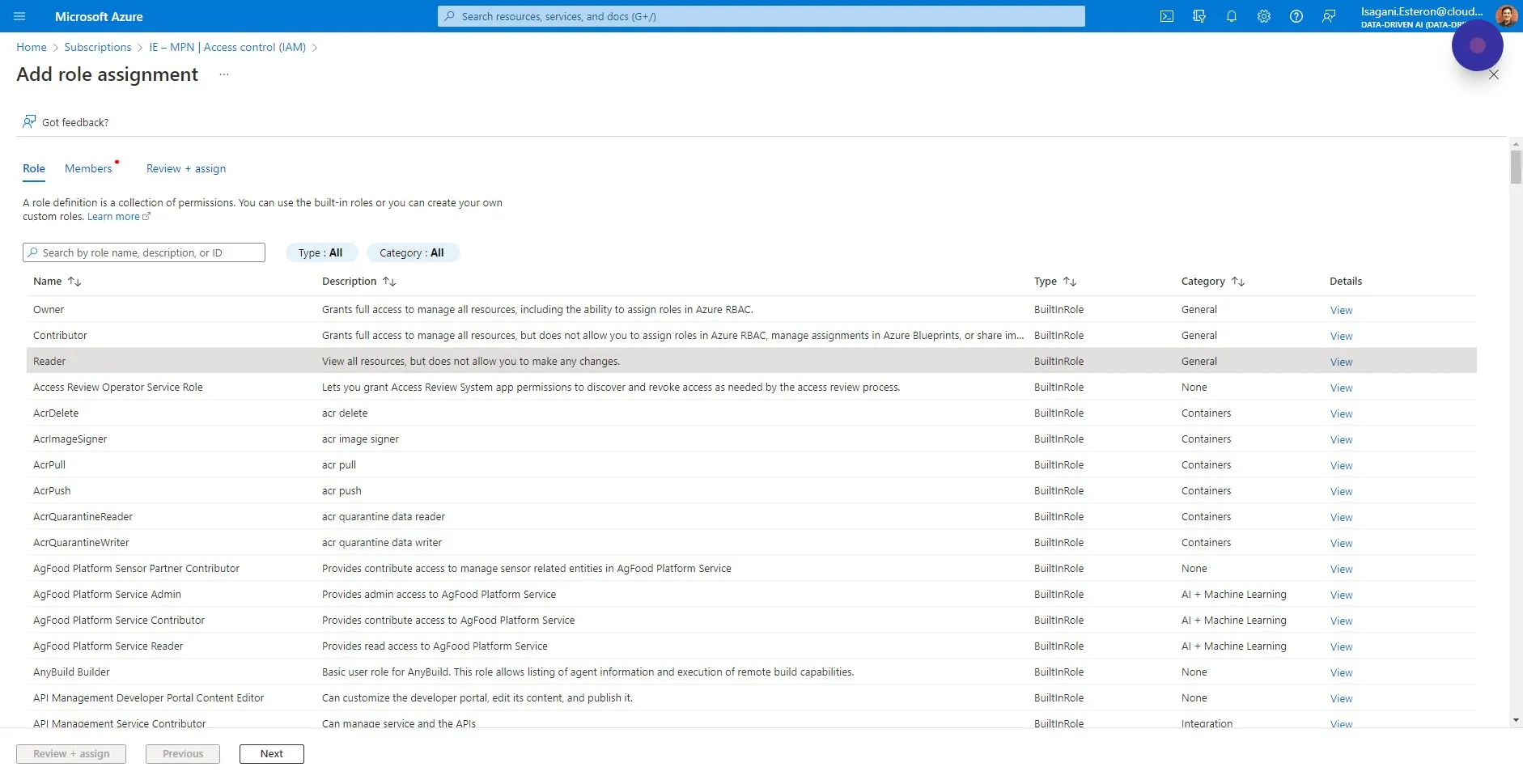
Section titled “Step 5”Select the “Reader” role. This only allows CloudMonitor to read service-plane metadata and costs, but not the contents inside of services such as database data and key vault keys.
Step 6
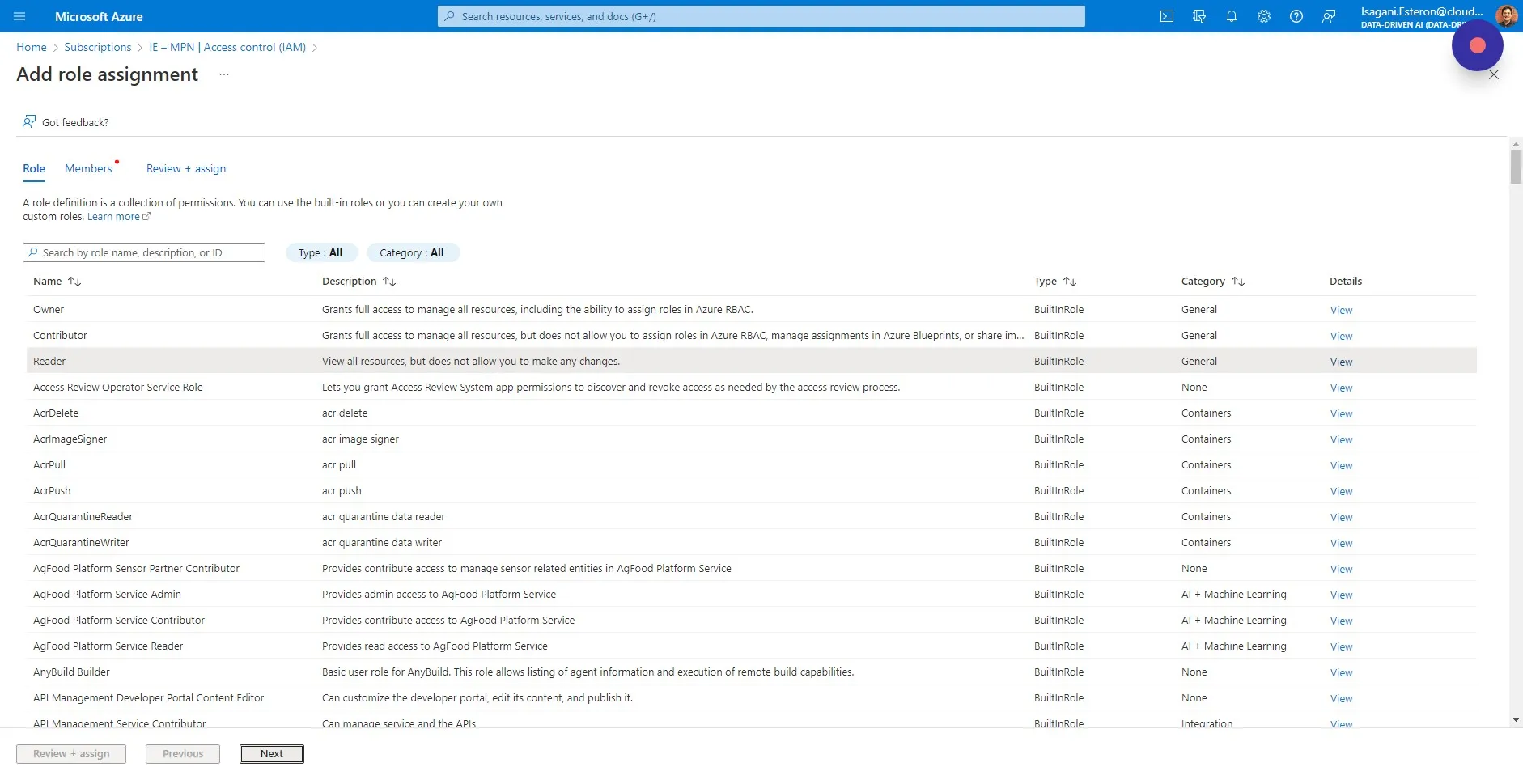
Section titled “Step 6”Click “Next”
Step 7
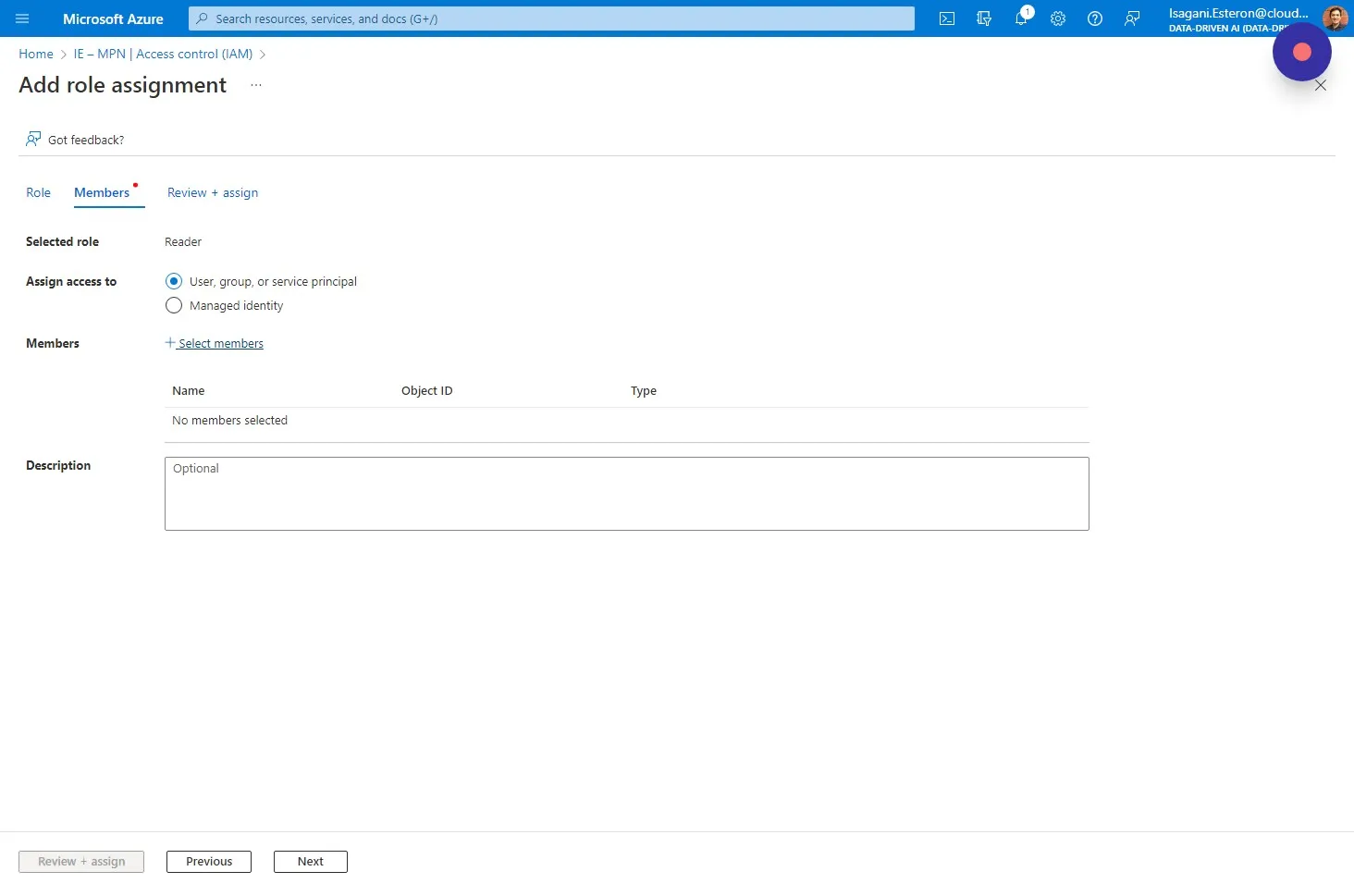
Section titled “Step 7”Choose “User, group, or service principal” and click “Select members”
Step 8
Section titled “Step 8”Type in the name of your Service Principal and select it from the drop down list. You can also search by the App Id (Client Id) of your service principal to ensure you have the right one.
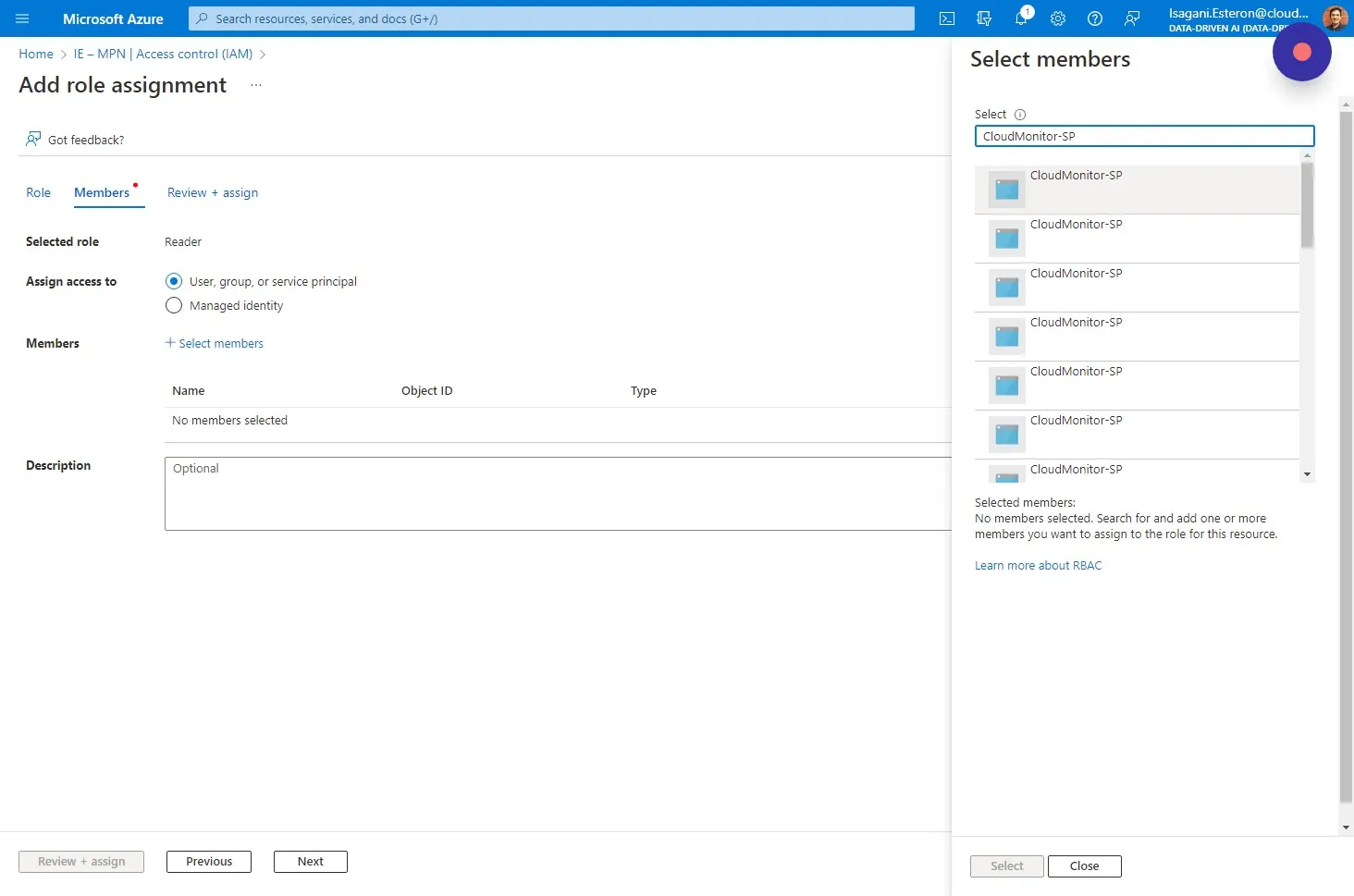
Step 9
Section titled “Step 9”Click “Select”
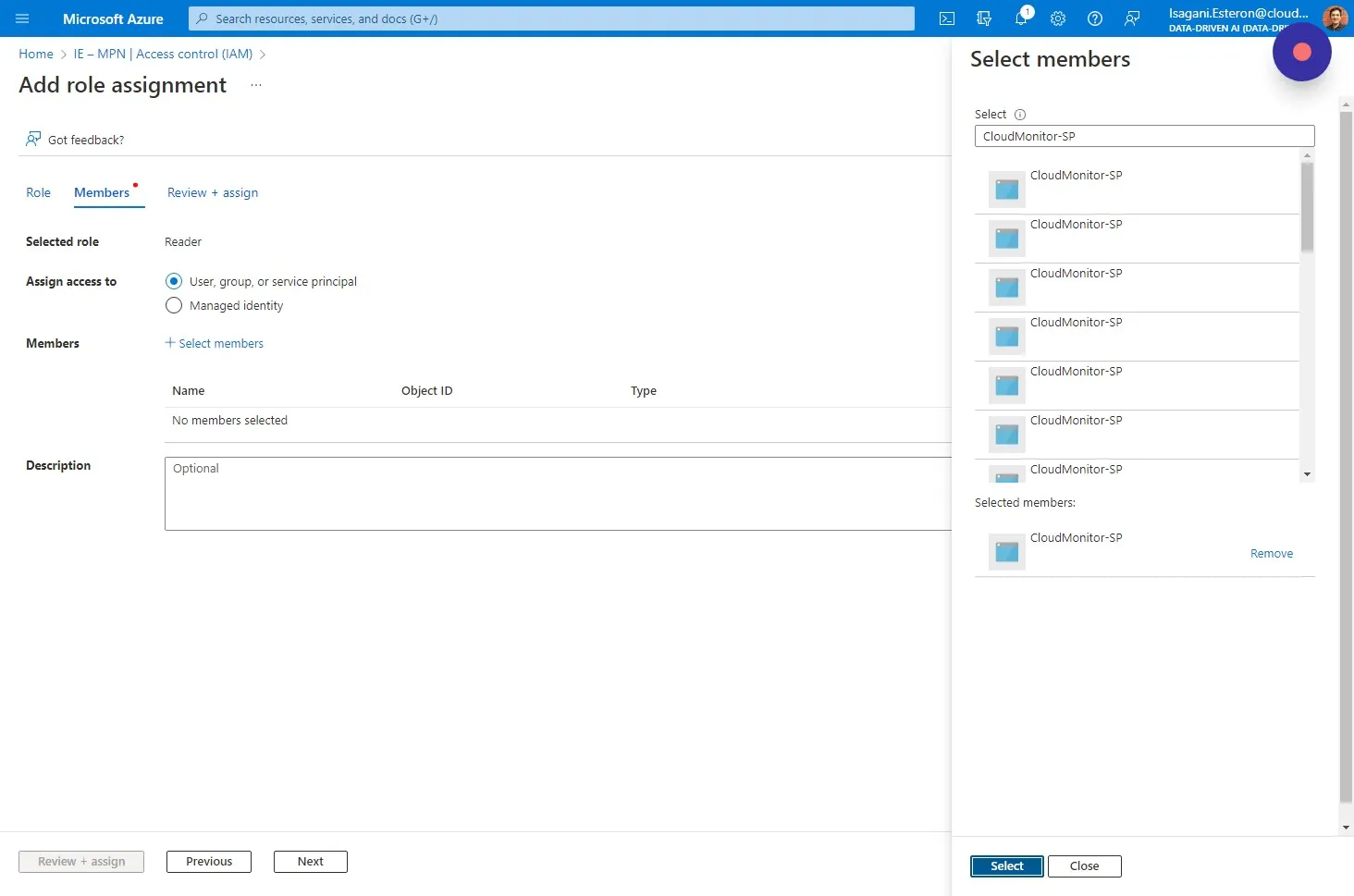
Step 10
Section titled “Step 10”Click “Next”.
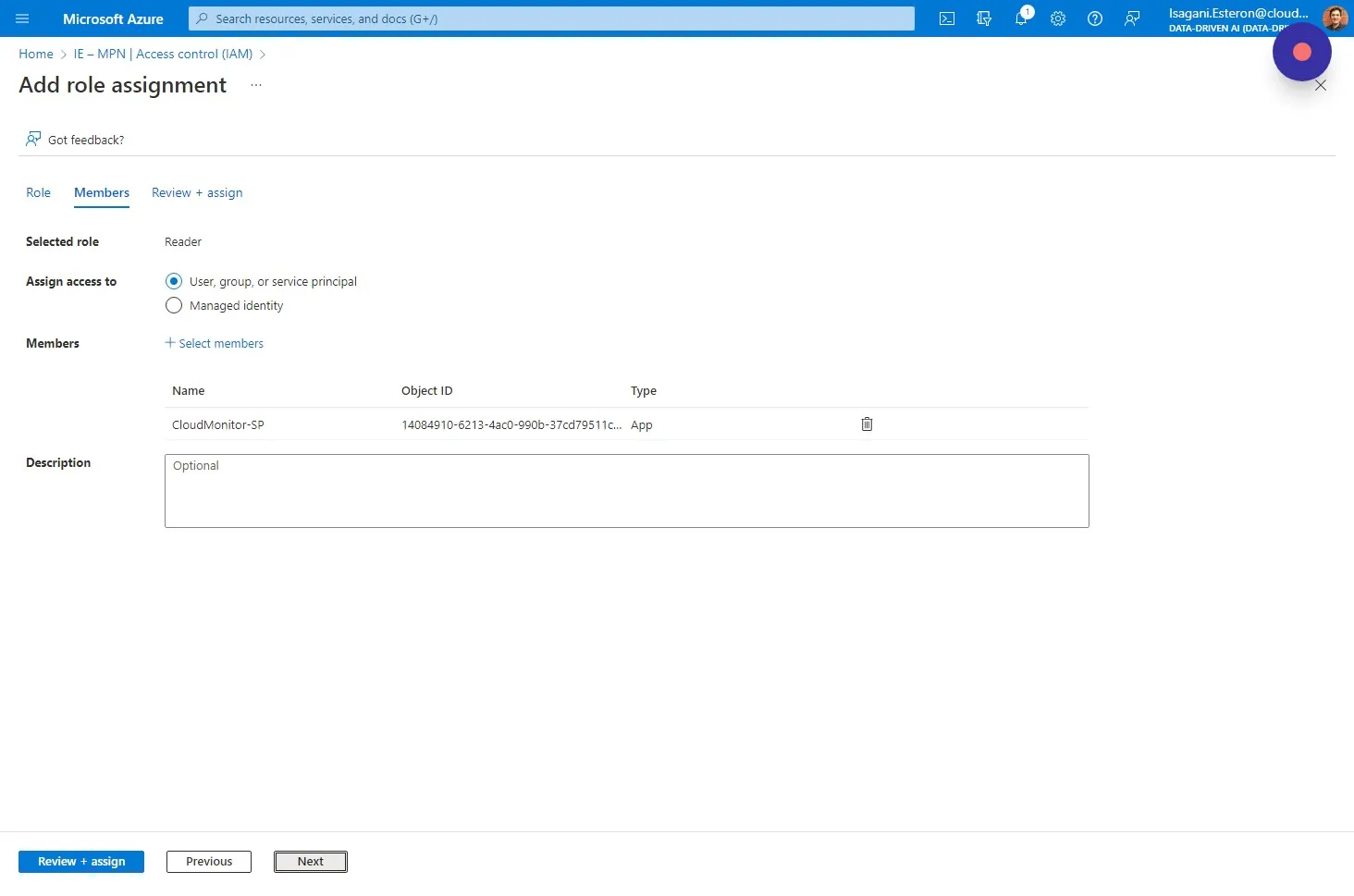
Step 11
Section titled “Step 11”Review the details and click “Review + assign”
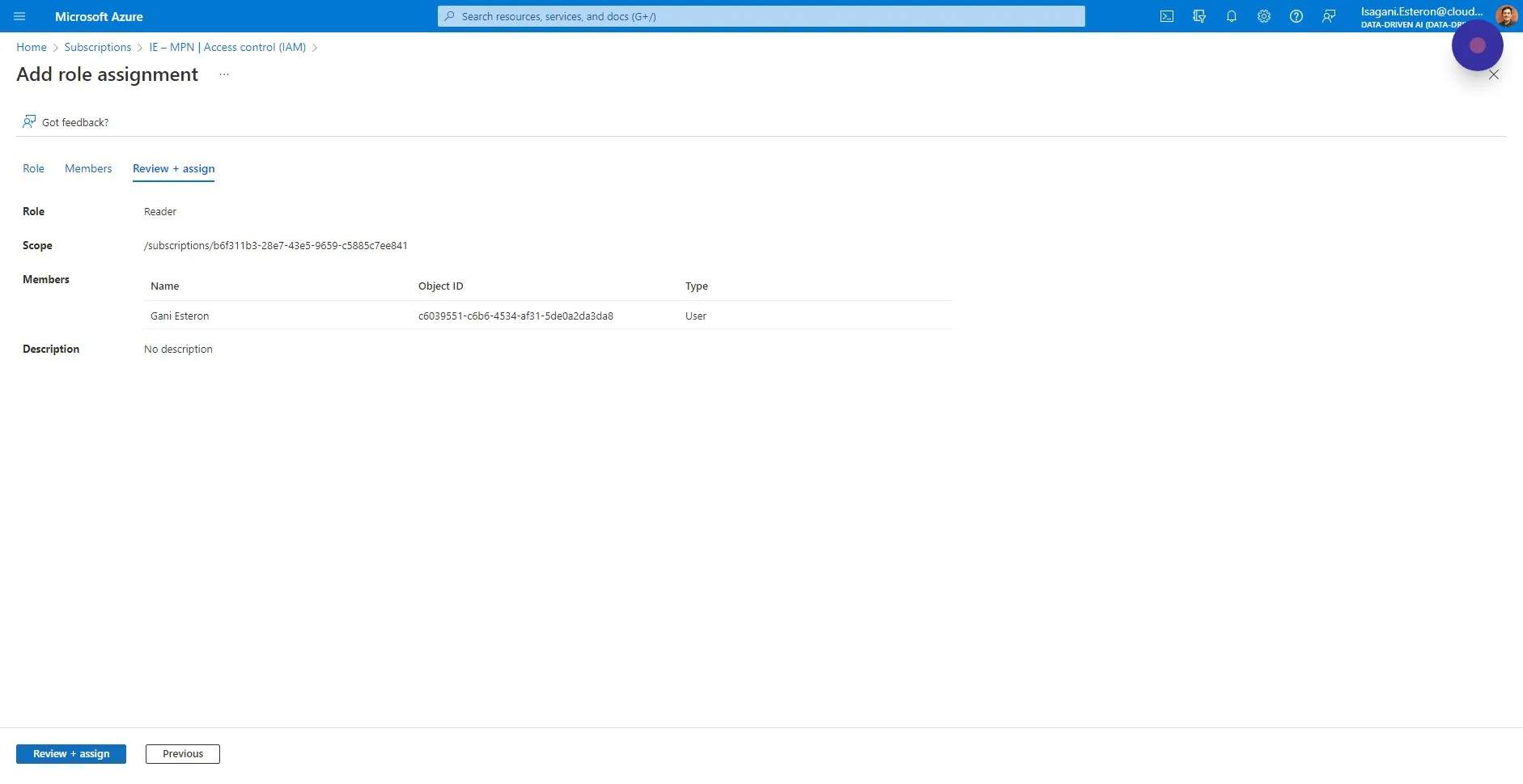
Step 12
Section titled “Step 12”The CloudMonitor Engine now has the access it needs to monitor this Subscription. Repeat this step for as many Subscriptions as you wish, or consider using a Management Group to allow all new Subscriptions to be monitored automatically.
Step 13
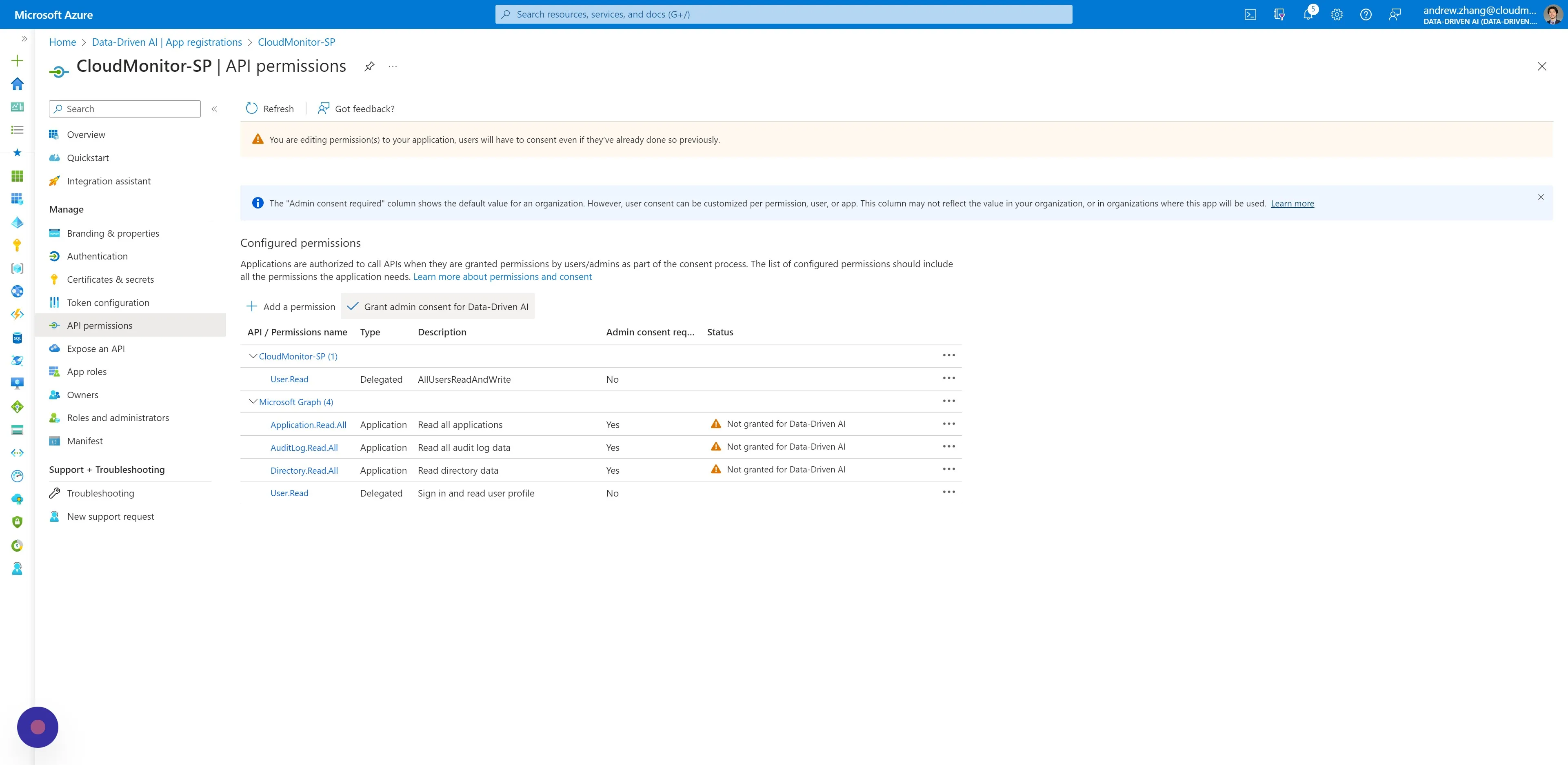
Section titled “Step 13”Navigate toAzure Active Directory > App Registrations, and click your CloudMonitor Service Principal by name or ClientId under the “All applications” tab.
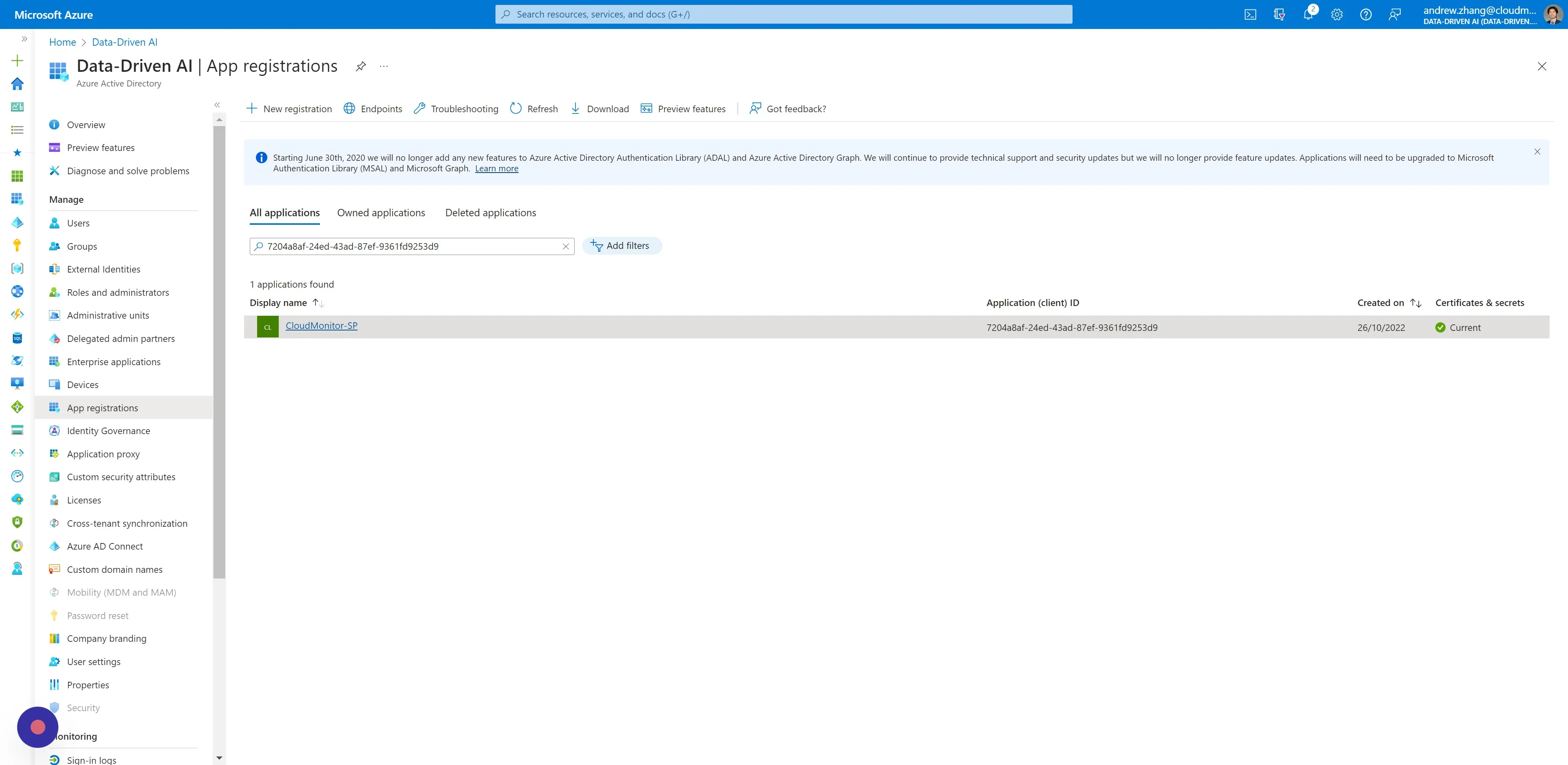
Step 14
Section titled “Step 14”On the side menu, under Manage, click “API permissions” and then click “Add a permission”.
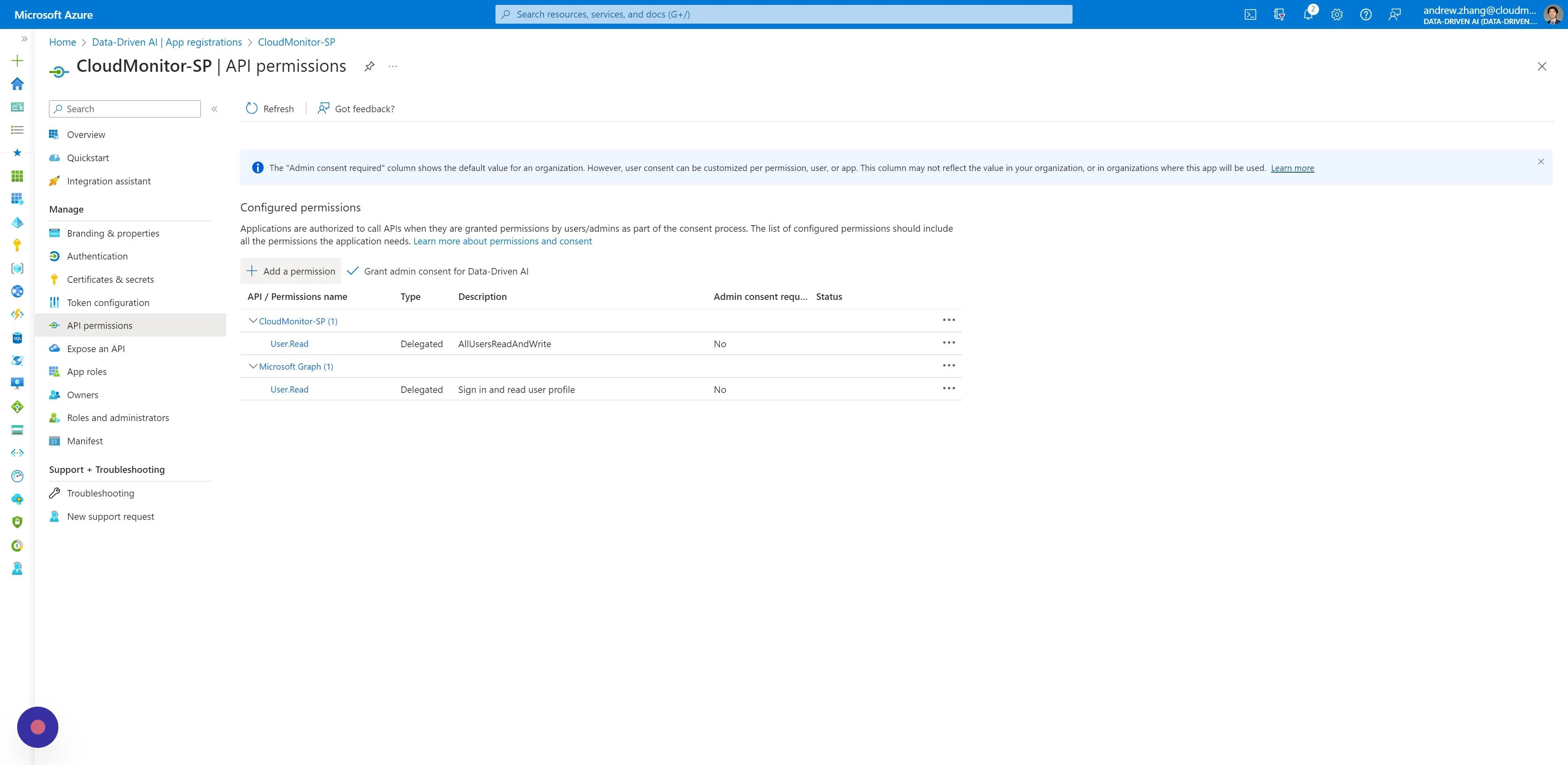
Step 15
Section titled “Step 15”In the modal window that opens, click “Microsoft Graph”.
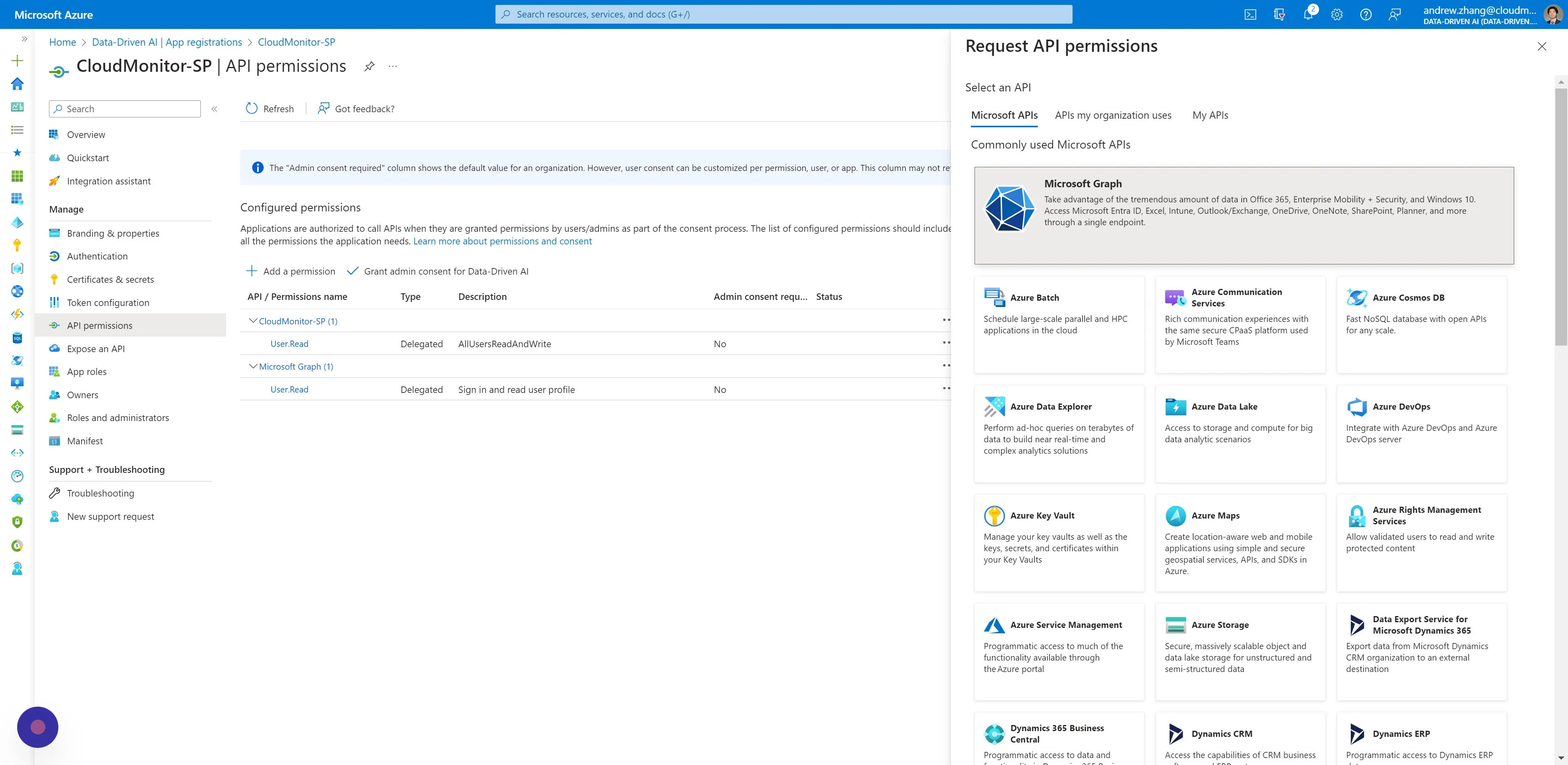
Step 16
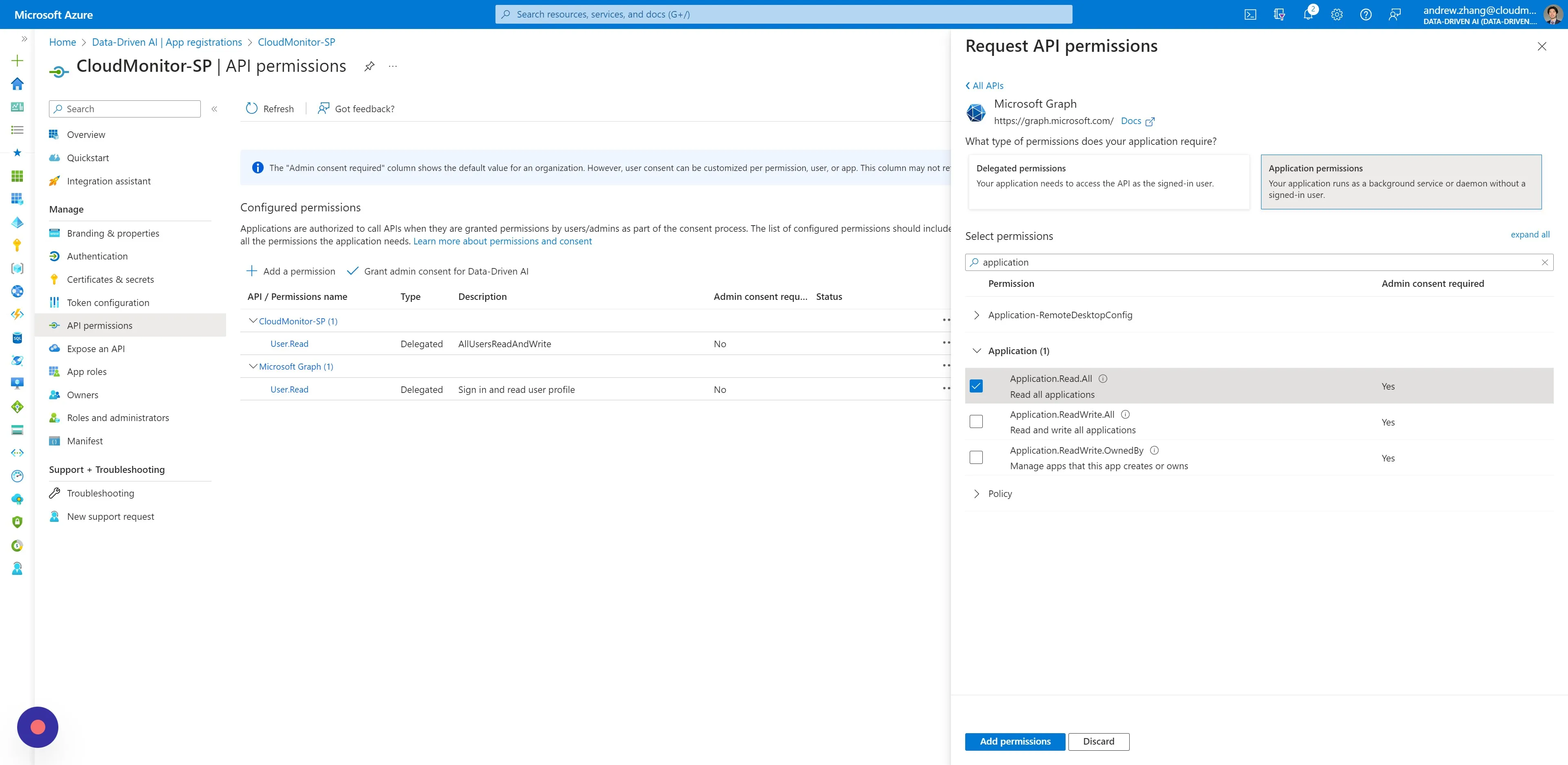
Section titled “Step 16”Click “Application permissions” and search for [[Application.Read.All]] in the select permissions input field. Then add the read permission by clicking “Add permissions” below.
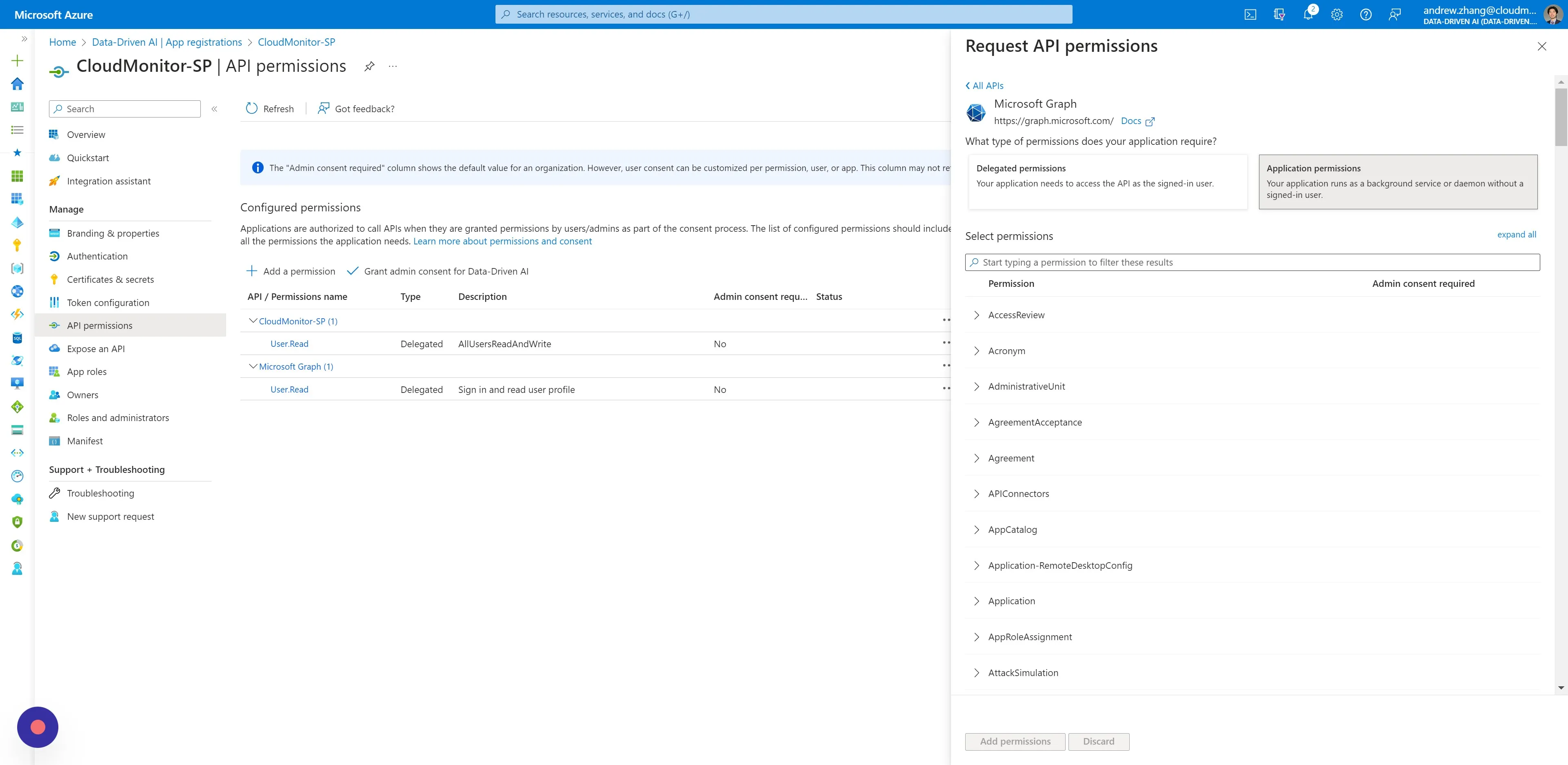
Step 17
Section titled “Step 17”Repeat the last step for the same Service Principal, adding these read permissions:
• [[AuditLog.Read.All]]
• [[Directory.Read.All]]
Step 18
Section titled “Step 18”Click “Grant admin consent for …”. This action requires a user with Admin rights.