How to recreate Client Secret?
Client Secret Value will only be displayed once. If you did not save the key, you won’t be able to retrieve it later. So it is very important to have it saved somewhere safe.
- This tutorial will focus on recreating a new Service Principal — whether you missed it or its expired.
Instructions in Recreating a NEW Client Secret
Section titled “Instructions in Recreating a NEW Client Secret”Step 1: Navigate to your Azure Active Directory
Section titled “Step 1: Navigate to your Azure Active Directory”Step 2: Select the installed CloudMonitor Engine application
Section titled “Step 2: Select the installed CloudMonitor Engine application”From App Registration in Azure AD, select the installed CloudMonitor Engine application.
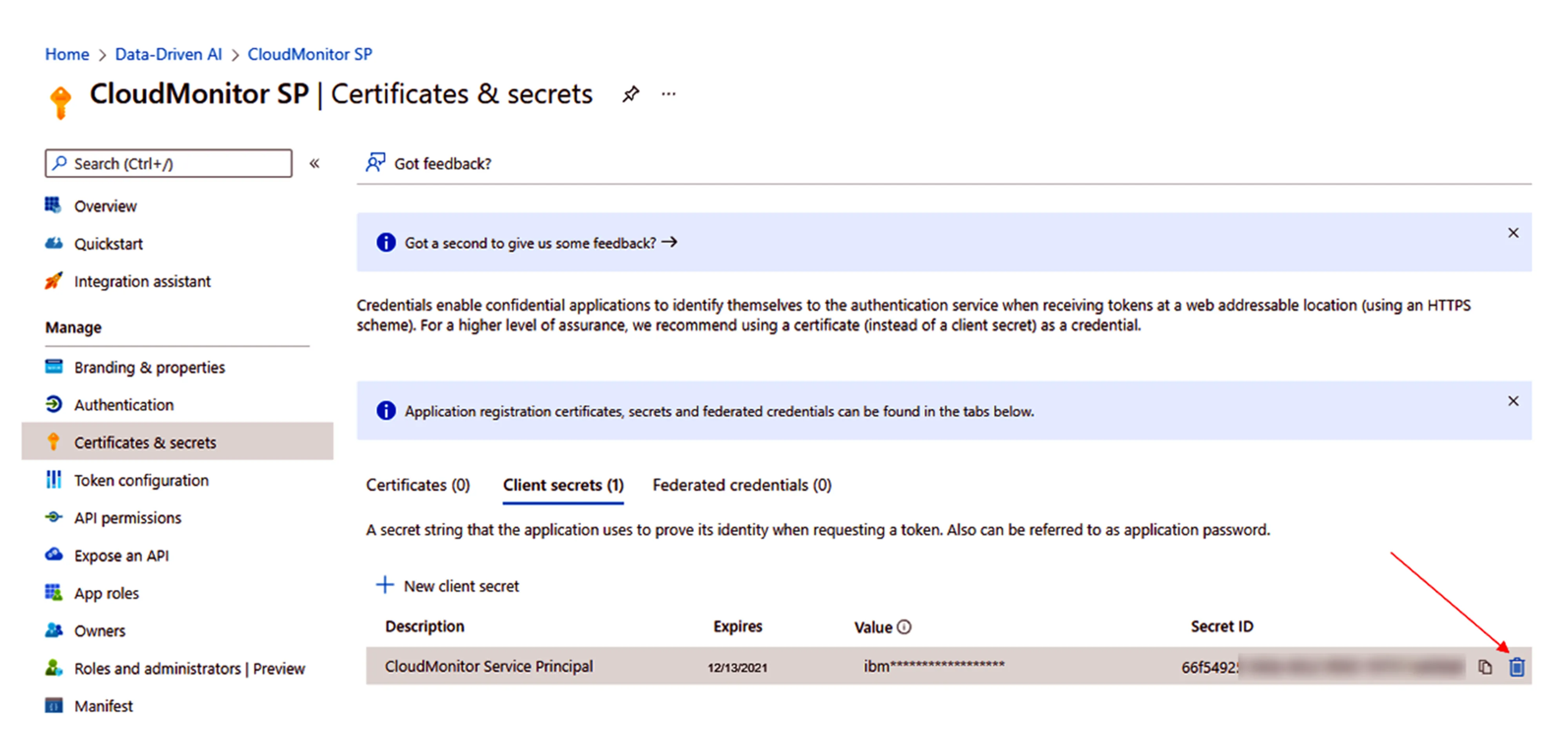
Step 3: Delete the expired or missed client secret
Section titled “Step 3: Delete the expired or missed client secret”Go to “Certificates & Secrets”, then find the expired or missed client secret. Just hover over the “delete” icon to remove it. It is recommended to remove the key that is no longer functional.
Step 4: Create a Client Secret
Section titled “Step 4: Create a Client Secret”The next step is to create a Client Secret so that CloudMonitor can authenticate with this Service Principal to communicate with the Azure Cost APIs.
To do this, select Certificates & Secrets then choose +New client secret.
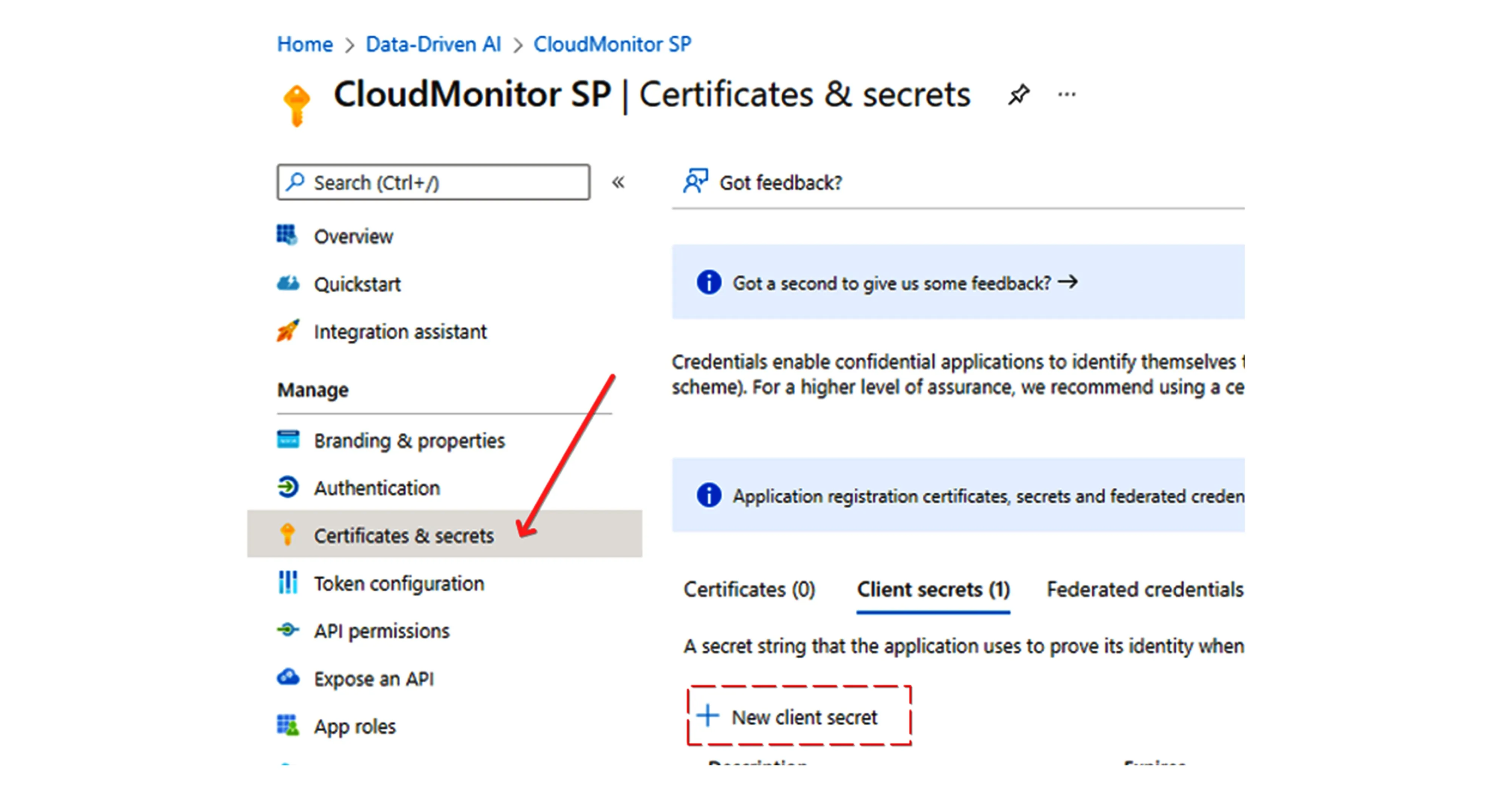
Then enter the following data on the text fields
Section titled “Then enter the following data on the text fields”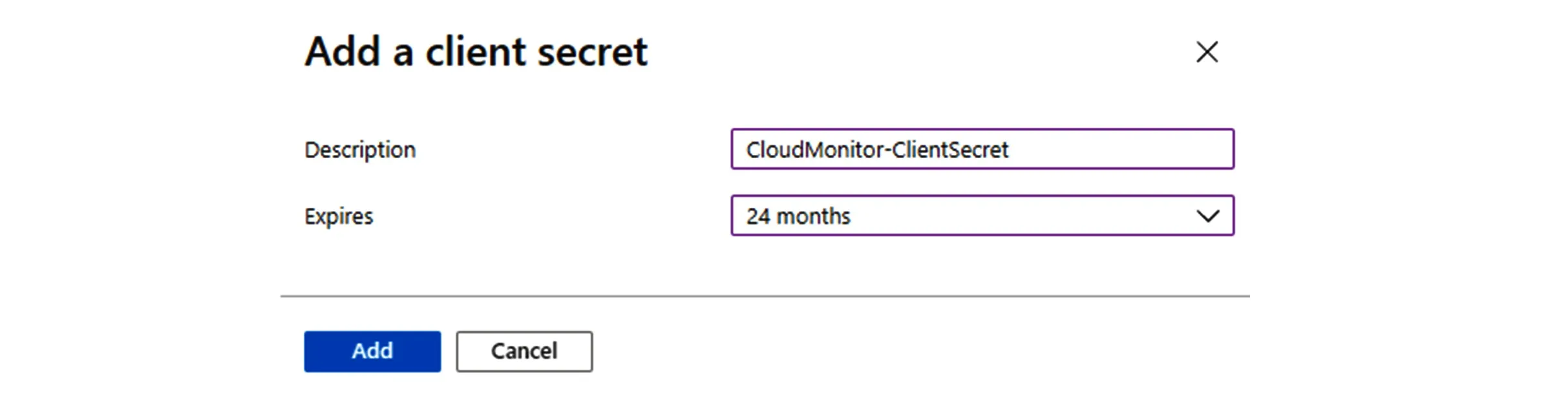
- Description: CloudMonitor-ClientSecret
- Expires: 24 months
Note: The expiration duration is up to you; when it expires, any application using it will stop working until the secret is updated).
When done, click on Add**.**
Step 5: Copy the Client Secret Value
Section titled “Step 5: Copy the Client Secret Value”The new Client Secret Value and ID will appear in the list. Copy the Client Secret Value by clicking on the copy to clipboard icon.
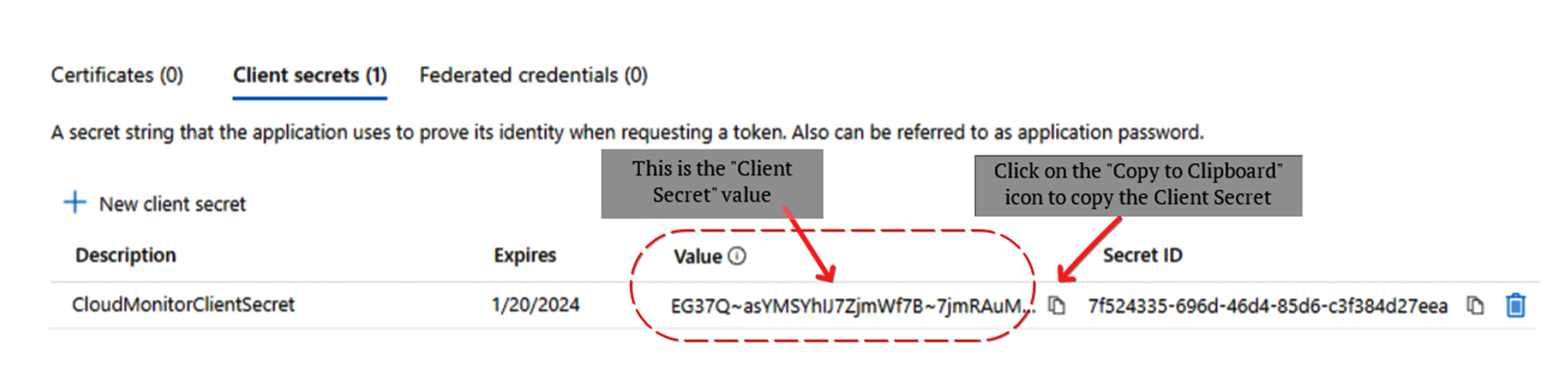
Important****: This Client Secret Value is never shown again so make sure you copy it to the clipboard. Do not share this with anyone other than CloudMonitor – treat it as you would a password.
Click on the “X” in the top right of this screen to close this Service Principal view and return to the CloudMonitor install wizard.
Step 6: Send the secret to the support helpdesk
Section titled “Step 6: Send the secret to the support helpdesk”Please send the new secret value to support@cloudmonitor.ai. Our support team will then run health checks and notify you once it is ready to use.